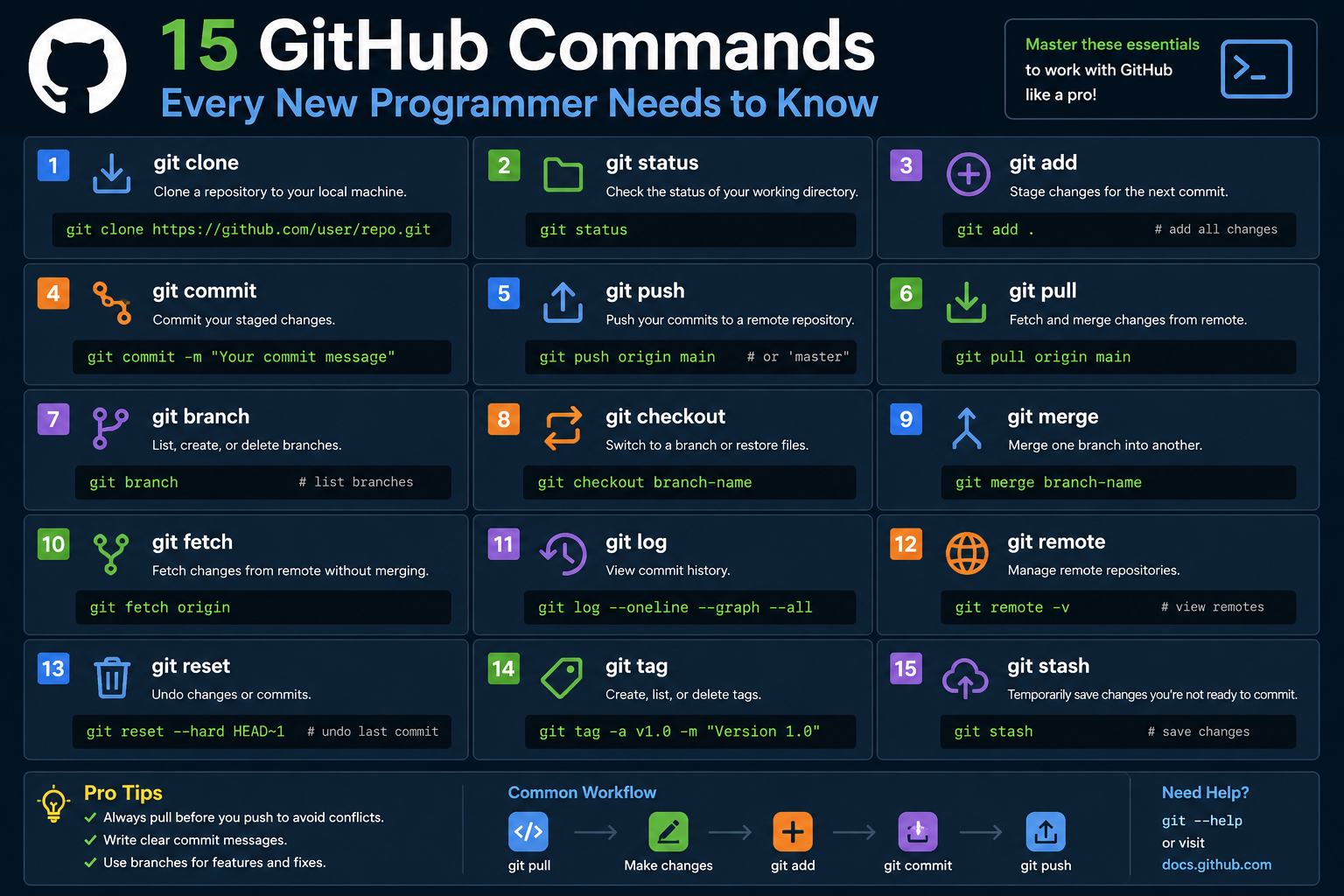
GitHub has become one of the most important platforms in modern software development and IT operations. Whether someone works in programming, cybersecurity, cloud computing, DevOps, or system administration, there is a strong chance they will interact with GitHub at some point in their career. The platform allows individuals and teams to manage projects, track code changes, collaborate remotely, and maintain organized development workflows.
At the center of GitHub is Git, which is a distributed version control system. Git allows users to record changes to files over time so they can review previous versions, restore lost work, and collaborate safely with others. Before version control systems became popular, teams often struggled with file conflicts, duplicated work, and confusion caused by manually saving multiple copies of the same project. Git solved many of these problems by creating a structured way to track modifications.
For beginners, GitHub can initially feel overwhelming. There are many new concepts to learn, including repositories, branches, commits, merging, staging, remotes, and cloning. In addition, most Git operations are performed through a command-line interface, which may be unfamiliar to users who primarily work with graphical applications.
The good news is that Git becomes much easier once users understand a small group of essential commands. These commands form the foundation of nearly every Git workflow. Once mastered, users can comfortably manage repositories, contribute to projects, and collaborate with teams.
GitHub is used in both personal and professional environments. Students use it to showcase coding projects and portfolios. Developers use it to contribute to open-source software. Companies use it to coordinate development among teams spread across different countries and time zones. Even non-developers sometimes use GitHub for documentation, infrastructure management, and automation scripts.
Learning Git commands is not only about memorizing syntax. It is about understanding how version control systems think and operate. Each command serves a specific purpose in organizing project history and enabling collaboration. When beginners understand the logic behind these commands, Git becomes far less intimidating.
This guide explores several essential GitHub commands that every beginner should understand. These commands represent the core operations required for creating repositories, tracking changes, managing branches, and synchronizing work with remote repositories.
Understanding the Git Help System
One of the first commands beginners should become familiar with is the Git help system. Git includes extensive built-in documentation designed to help users understand commands, arguments, and workflows. Instead of relying entirely on external tutorials or search engines, users can access detailed guidance directly from the command line.
The help system is extremely valuable because Git contains many commands and options that are difficult to remember at first. Even experienced developers frequently consult the documentation when working with advanced features or less commonly used commands.
When users request help for a specific command, Git displays detailed information explaining the purpose of the command, how it functions, and which parameters can be used alongside it. These explanations often include examples that demonstrate practical usage scenarios.
The help system also provides a list of all available Git commands. This helps beginners explore Git capabilities gradually instead of trying to memorize everything immediately. By reviewing available commands, users become more aware of the tools Git offers for repository management and collaboration.
In addition to command documentation, Git includes guides and tutorials that explain broader concepts. These guides may cover workflows, branching strategies, repository organization, collaboration techniques, and troubleshooting methods. Reading these guides can significantly improve a beginner’s understanding of Git practices.
Using the help system encourages independent learning. Instead of depending on others for every question, users can research commands themselves and develop stronger technical confidence. This habit becomes increasingly useful as projects grow more advanced.
Another advantage of the Git help system is consistency. External tutorials may differ in quality or become outdated over time, but Git’s built-in documentation is generally aligned with the installed version of the software. This ensures users receive accurate information relevant to their environment.
Many beginners underestimate how useful the help command can be. However, developing the habit of consulting documentation early often leads to faster learning and fewer mistakes later on.
Configuring Git Properly
After installing Git, one of the most important tasks is configuring the environment correctly. Git requires certain information before it can accurately track contributions and commits within repositories. The most critical settings are the username and email address associated with the user.
Whenever someone creates a commit, Git records metadata about that action. This metadata includes the author’s name, email address, timestamp, and commit message. These details become part of the repository history and help teams identify who made specific changes.
Using consistent information is important, especially for users working with GitHub. GitHub links commits to user accounts through matching email addresses. If the configured email differs from the email registered on GitHub, commits may not appear correctly on the user’s profile.
Git configuration settings can be applied globally or locally. Global settings affect all repositories on the computer, while local settings apply only to a specific repository. Beginners typically use global settings because they simplify setup across multiple projects.
Beyond usernames and emails, Git also supports additional configuration options. Users can configure default text editors, color settings, merge behavior, aliases, credential storage, and default branch names. Although beginners may not need these advanced settings immediately, understanding that Git is highly customizable can be beneficial later.
Proper configuration improves workflow efficiency and reduces confusion during collaboration. Incorrect settings can lead to authentication problems, missing contribution records, or inconsistent commit history. Spending time configuring Git correctly at the beginning prevents many common issues.
Another important aspect of configuration is authentication. Modern GitHub workflows often require personal access tokens or SSH keys instead of traditional passwords. Understanding how authentication works becomes increasingly important as users start pushing and pulling repositories regularly.
Configuration also contributes to professionalism. When collaborating on projects, consistent usernames and meaningful commit identities make repository history cleaner and easier to understand. Teams rely heavily on accurate commit information when reviewing code changes and tracking project progress.
Although configuration may not seem exciting compared to coding or collaboration, it forms the foundation of a smooth Git experience. Beginners who properly configure Git early typically encounter fewer technical frustrations later.
Initializing a New Repository
Repositories are central to Git operations. A repository is essentially a project folder managed by Git, containing both project files and the internal version control data required for tracking changes.
Before Git can manage a project, the project must first be initialized as a repository. During initialization, Git creates a hidden internal structure that stores metadata, commit history, branches, references, and configuration information.
Initializing a repository is usually the first step when starting a brand-new project locally. For example, a developer creating a web application might first create a project directory and then initialize Git within it. Once initialized, Git begins tracking modifications inside that folder.
Git initialization is also useful for existing projects that previously lacked version control. Suppose someone has been working on scripts, configuration files, or documentation manually. Initializing Git in that existing folder immediately enables change tracking without requiring the project to be recreated.
The internal structure created during initialization is extremely important. Although most users rarely interact directly with these hidden files, they power Git’s entire version control system. Without this structure, Git commands cannot operate properly.
Once a repository has been initialized, users can begin adding files, staging changes, creating commits, and connecting the repository to remote platforms such as GitHub. Initialization effectively transforms an ordinary directory into a fully functional version-controlled environment.
Repositories also support collaboration and organization. Each repository maintains its own history, settings, and branches independently. This allows users to manage multiple projects without conflicts between them.
Understanding repositories is essential because every Git workflow depends on them. Whether users are creating personal projects, contributing to open-source software, or collaborating with teams, repositories serve as the central workspace for all activities.
Beginners sometimes overlook the importance of repository structure because much of it operates behind the scenes. However, learning how repositories function provides valuable insight into why Git commands behave the way they do.
Cloning Existing Repositories
In many situations, users work on projects that already exist rather than starting entirely from scratch. Cloning allows users to create a complete local copy of a remote repository stored on GitHub or another hosting platform.
When a repository is cloned, Git downloads all project files, commit history, branches, and metadata to the local computer. This creates a fully functional working environment that mirrors the remote repository.
Cloning is extremely common in professional development environments. Open-source contributors frequently clone repositories before fixing bugs or adding features. Companies also rely on cloning when team members join projects and need local access to shared codebases.
One of the most important aspects of cloning is the automatic setup of a remote connection. Git creates a default reference called origin that points to the original repository location. This connection allows users to easily synchronize changes later through push and pull operations.
Cloning provides significant convenience because it automatically initializes the repository while also downloading all project content. Without cloning, users would need to manually create repositories and configure remote connections separately.
Another major advantage of cloning is access to project history. Users can inspect previous commits, compare changes over time, and analyze development progress. This historical visibility is one of Git’s strongest features.
Cloning also supports experimentation. Developers can safely test new ideas locally without affecting the remote repository immediately. Changes remain isolated on the local machine until explicitly pushed back to the remote server.
For beginners, cloning is often the first interaction with collaborative development. Downloading an existing repository helps users understand how local repositories relate to remote repositories hosted online.
Cloning additionally enables offline work. Once the repository exists locally, users can continue making commits and reviewing history even without an internet connection. Synchronization with GitHub only becomes necessary when pushing or pulling updates.
Understanding cloning is important because it introduces the relationship between local and remote repositories. This relationship forms the basis of nearly every collaborative Git workflow.
Adding Changes to the Staging Area
One of the most unique aspects of Git is the staging area. Unlike many systems that immediately save all modifications, Git uses a two-step process for recording changes. Before changes become part of a commit, they must first be staged.
The staging area acts as a preparation zone where users organize the exact changes they want included in the next commit. This provides precise control over project history and helps keep commits clean and meaningful.
When files are modified, Git recognizes that changes have occurred but does not automatically include them in commits. Users must explicitly add those changes to the staging area. This design encourages careful review and intentional version tracking.
Staging can include newly created files, modified files, and deleted files. Users may stage individual files, specific directories, or all changes within the repository at once.
Selective staging is particularly useful in larger projects. Imagine a developer working on two unrelated tasks simultaneously. Instead of combining everything into one large commit, staging allows related changes to be grouped logically into separate commits.
This organization improves collaboration because other team members can more easily understand project history. Well-structured commits also simplify debugging, code reviews, and rollback operations.
Many beginners initially find the staging concept confusing because it introduces an extra step between editing files and committing them. However, once understood, the staging area becomes one of Git’s most powerful workflow features.
The staging process also encourages discipline. Instead of creating chaotic commits containing unrelated modifications, users learn to think carefully about how changes should be organized.
Another advantage of staging is flexibility. Users can adjust the staging area repeatedly before committing, adding or removing files as needed. This provides greater control over the final snapshot recorded in repository history.
Understanding staging is essential because nearly every Git workflow depends on it. Users who master the staging process gain a much deeper understanding of how Git manages project changes efficiently.
Checking Repository Status
While working with repositories, users constantly need awareness of the current project state. Git provides this visibility through status reporting, which displays detailed information about tracked files and repository activity.
The status command shows which files have been modified, which changes are staged for commit, which files remain unstaged, and which files are currently untracked. This overview helps users maintain control over ongoing work.
One of the greatest strengths of the status output is clarity. Git often provides helpful instructions explaining what users can do next, such as staging files, discarding changes, or committing modifications. These suggestions are especially useful for beginners.
Status reporting helps prevent mistakes. For example, if a developer edits several important files but forgets to stage one of them, the status output immediately highlights the missing file.
Frequent status checks become a habit among experienced Git users. Before committing, switching branches, pulling updates, or pushing changes, many developers verify repository status to avoid unintended actions.
The status command also improves project awareness during collaboration. In team environments, developers may work on multiple features simultaneously, making it important to track which files are actively changing.
Another useful aspect of status reporting is visibility into untracked files. Newly created files are not automatically managed by Git until explicitly added. Status output ensures users do not accidentally overlook important files.
For beginners, regularly checking repository status builds confidence and reduces uncertainty. Git workflows become easier when users always understand the exact state of their repositories.
Although status reporting may appear simple compared to more advanced Git operations, it plays a vital role in everyday development workflows. Many common Git mistakes can be avoided simply by checking repository status frequently and carefully.
Creating Meaningful Commits
After changes have been added to the staging area, the next step is creating a commit. A commit represents a snapshot of the repository at a particular moment in time. Each commit records the staged changes along with metadata such as the author, timestamp, and a descriptive message explaining what was modified.
Commits are one of the most important concepts in Git because they create the permanent history of a project. Every meaningful update should ideally be captured in a separate commit so that project history remains organized and understandable.
A well-written commit message is extremely important. The message should clearly describe the purpose of the changes instead of using vague descriptions. Messages such as “fixed login issue,” “updated documentation,” or “added API validation” are far more useful than generic messages like “changes” or “update.”
Clear commit messages improve collaboration because other developers can quickly understand repository history without opening every modified file. This becomes especially valuable in large projects where hundreds or thousands of commits may exist.
Commits also provide safety. If a bug is introduced later, developers can review previous commits to identify exactly when the problem appeared. In some cases, problematic commits can even be reverted entirely to restore a stable project state.
Another advantage of commits is experimentation. Developers can safely test new features knowing that earlier project states remain preserved in repository history. If an experiment fails, the project can return to a previous commit without losing all progress.
Many beginners make the mistake of creating very large commits containing unrelated modifications. This approach can make debugging and collaboration difficult. Instead, commits should focus on a single purpose or feature whenever possible.
Frequent commits are generally recommended because they create a more detailed and useful project history. Small, focused commits are easier to review, easier to understand, and easier to troubleshoot later.
Commits exist locally until they are pushed to a remote repository. This means developers can create many commits on their own machines before sharing them with others. Local commits provide flexibility and allow users to refine work before collaboration occurs.
Understanding commits is critical because they represent the core historical structure of every Git repository. Nearly every advanced Git operation revolves around commit history in some way.
Pushing Changes to Remote Repositories
Once local commits have been created, the next step is often sharing those changes with others through a remote repository. This is where pushing becomes important.
Pushing uploads local commits from a computer to a remote repository hosted on platforms such as GitHub. This process synchronizes the local project history with the online repository so that collaborators can access the latest updates.
Remote repositories act as centralized collaboration points for teams. Developers across different locations can contribute changes, review code, and coordinate project development through shared repositories.
When users push changes, Git compares local commits with the remote repository history. Only commits that do not already exist remotely are transferred. This makes synchronization efficient even for large projects.
One of the most important ideas beginners must understand is that local commits do not automatically appear on GitHub. Creating a commit only updates the local repository. Pushing is required before others can see or access those changes online.
Pushing also helps create backups. Since remote repositories are stored online, pushing ensures work is preserved even if something happens to the local computer. Many teams rely on remote repositories as both collaboration tools and backup systems.
Branches play an important role during pushing. Developers often push changes to separate branches instead of directly updating the main project branch. This allows features to be reviewed and tested before integration into the primary codebase.
Authentication is another important aspect of pushing. Modern GitHub workflows commonly use SSH keys or personal access tokens instead of passwords. Beginners should understand that secure authentication is necessary when interacting with remote repositories.
Sometimes pushing may fail if the remote repository contains changes not present locally. In such cases, users typically need to pull and merge updates before pushing again. This prevents accidental overwriting of other contributors’ work.
Push operations are fundamental to collaborative software development. Whether contributing to open-source projects or working within organizations, developers constantly push commits to synchronize their progress with shared repositories.
Understanding push operations also helps beginners appreciate the distinction between local repositories and remote repositories. Git workflows depend heavily on managing the relationship between these two environments effectively.
Pulling Updates From Remote Repositories
Just as developers push local changes to remote repositories, they also need ways to receive updates created by others. Pulling allows users to download and integrate remote changes into their local repositories.
In collaborative projects, multiple contributors may update the repository frequently. Without pulling updates regularly, local repositories quickly become outdated. Pulling ensures users remain synchronized with the latest project state.
The pull process actually combines two separate operations. First, Git downloads changes from the remote repository. Then it merges those changes into the local branch automatically. This combination simplifies synchronization for everyday workflows.
Pulling is especially important before starting new work. Developers who begin coding without first pulling recent changes may later encounter conflicts if teammates modified the same files.
One major advantage of pulling is visibility into project progress. By regularly updating local repositories, developers stay informed about new features, bug fixes, documentation updates, and structural changes introduced by collaborators.
Sometimes pulling introduces merge conflicts. Conflicts occur when Git cannot automatically combine changes because the same sections of files were modified differently in separate locations. Resolving conflicts requires manual review and decision-making.
Although conflicts can seem intimidating at first, they are a normal part of collaborative development. Understanding how to handle conflicts is an important skill for anyone using Git professionally.
Pulling also reinforces the distributed nature of Git. Every contributor maintains a complete local copy of the repository, including commit history and branches. Synchronization occurs only when users explicitly push or pull updates.
Many experienced developers pull changes frequently throughout the day, especially when working on active team projects. This minimizes divergence between local and remote repositories and reduces the likelihood of major conflicts later.
Beginners should develop the habit of pulling updates regularly before beginning work sessions. This simple practice improves collaboration and helps maintain repository consistency.
Understanding Git Branches
Branches are one of Git’s most powerful and important features. A branch represents an independent line of development within a repository. Instead of modifying the main project directly, developers can create branches to work on features, fixes, or experiments safely.
The default branch in many repositories is often called main or master. This branch usually contains the stable version of the project. Additional branches allow developers to work separately without disrupting the stable codebase.
Branching is extremely useful in collaborative development. Multiple developers can work on different tasks simultaneously without interfering with each other’s changes. Each branch maintains its own independent commit history until merged later.
For example, one developer may create a branch for a login feature while another works on performance improvements. Both contributors can make progress independently before integrating their work into the main branch.
Branches also encourage experimentation. Developers can test risky ideas or major changes without affecting the primary project. If the experiment fails, the branch can simply be deleted without harming the main repository.
Git makes branching lightweight and efficient. Creating branches is fast because branches mainly act as pointers to commits rather than duplicating entire repositories.
Viewing available branches helps developers understand repository structure and active development efforts. Repositories may contain branches for features, testing, releases, bug fixes, or documentation updates.
Naming branches clearly is considered good practice. Meaningful names such as feature-login-system or fix-payment-bug are much easier to understand than vague names like branch1 or test.
Remote repositories can also contain branches not yet downloaded locally. Developers often collaborate across shared remote branches during team projects.
Understanding branches is essential because nearly all professional Git workflows rely heavily on branching strategies. Modern development environments use branches extensively to organize work and maintain stability.
Beginners who learn branching early gain a much stronger understanding of collaborative version control practices.
Switching Between Branches
Creating branches alone is not enough. Developers also need ways to move between them efficiently. Switching branches changes the active working environment so users can focus on different lines of development.
When switching branches, Git updates the working directory to match the selected branch. Files may change automatically depending on differences between branch histories.
For example, suppose a developer is working on a new feature branch but suddenly needs to fix an urgent bug in the main branch. Git allows the developer to switch branches quickly, address the issue, and then return to the feature branch later.
This flexibility is one of Git’s greatest strengths. Developers can manage multiple tasks simultaneously without maintaining separate project folders manually.
Branch switching also supports context isolation. Each branch can contain different code versions, features, or configurations without affecting other branches.
Another useful capability is creating and switching to a new branch in a single step. This simplifies workflow efficiency and encourages developers to use branches more frequently.
Before switching branches, developers should ensure changes are committed or safely stored. Uncommitted modifications can sometimes interfere with branch changes, especially if the same files differ significantly between branches.
Branch switching is often combined with collaboration workflows. Developers may switch between feature branches, testing branches, release branches, and the main branch many times during a single workday.
Understanding how switching works also helps explain why branches are powerful. Rather than duplicating entire projects manually, Git dynamically adjusts the working directory according to branch history.
Many beginners initially struggle with branch concepts because they seem abstract. However, regular practice quickly demonstrates how useful branch switching becomes during real development work.
Efficient branch management improves productivity, organization, and collaboration across projects of all sizes.
Temporarily Saving Work With Stashing
Sometimes developers need to pause their current work temporarily without creating a permanent commit. Stashing provides a convenient solution for this situation.
A stash stores both staged and unstaged changes temporarily while restoring the working directory to a clean state. This allows developers to switch tasks quickly without losing incomplete work.
For example, imagine a developer working on a feature when an urgent production bug suddenly appears. Instead of creating a messy incomplete commit, the developer can stash current changes, switch branches to fix the issue, and later restore the original work.
Stashing is especially useful when users are not ready to commit changes permanently. Perhaps the work is incomplete, experimental, or not yet functioning correctly.
Git supports multiple stashes, allowing users to store several sets of changes independently. These stashes can later be listed, restored, or deleted as needed.
Restoring stashed changes can either remove them from the stash list or leave them stored for future reuse. Keeping stashes after restoration can be useful when applying the same modifications across multiple branches.
Stashing helps maintain clean commit history by avoiding unnecessary temporary commits. Instead of committing half-finished code, developers can safely pause work until ready to continue.
Another advantage of stashing is workflow flexibility. Developers can quickly switch between priorities without creating confusion inside the repository.
However, stashes should generally be considered temporary storage rather than long-term solutions. Important work should eventually be committed properly so it becomes part of repository history.
Beginners sometimes forget about existing stashes, which can lead to confusion later. Regularly reviewing and managing stash lists helps prevent forgotten changes from accumulating.
Understanding stashing improves adaptability during development workflows. Real-world software projects often involve interruptions, changing priorities, and urgent fixes, making temporary work storage extremely valuable.
Downloading Changes With Fetching
Fetching is closely related to pulling, but it behaves differently in an important way. Fetching downloads updates from a remote repository without automatically merging them into the local branch.
This distinction provides developers with greater control over synchronization. Instead of immediately integrating remote changes, fetching allows users to inspect updates first before deciding how to proceed.
Fetching updates local references to remote branches while leaving the working directory unchanged. Developers can then review commit history, compare branches, or perform merges manually later.
This approach is especially useful in complex projects where automatic merging may not be desirable immediately. Teams often fetch updates first to analyze incoming changes carefully before integration.
Fetching also reduces risk during collaboration. Instead of unexpectedly altering the local project state, developers can examine updates in a controlled manner.
Another advantage of fetching is visibility into remote activity. Developers can see which branches have changed, which commits were added, and how repository history evolved since the last synchronization.
Fetching is commonly used before reviewing pull requests or preparing for manual merges. It provides a safer and more deliberate workflow compared to automatic pulling.
Even though pulling internally performs a fetch operation before merging, understanding fetch separately helps users appreciate Git’s flexibility and modular design.
Many advanced Git workflows rely heavily on fetching because it allows precise control over synchronization behavior.
Beginners often use pull commands more frequently because they are simpler. However, learning fetch operations provides a deeper understanding of how Git communicates with remote repositories and manages updates safely.
Understanding Git Merge Operations
As projects grow and multiple branches are created, developers eventually need to combine changes from different branches into a single branch. This process is known as merging. Merging is one of the most important Git operations because it allows teams to integrate completed work into the primary codebase while maintaining organized development workflows.
In most repositories, developers create separate branches for features, bug fixes, testing, or experiments. Once the work on a branch is complete and reviewed, those changes are merged into another branch, usually the main or master branch. This keeps the stable version of the project updated with newly completed work.
The merge process works by combining commit histories from different branches. Git analyzes the differences between branches and attempts to integrate changes automatically whenever possible. If changes affect separate files or different parts of the same file, Git usually merges everything without issues.
However, merge conflicts can occur when two branches modify the same lines within a file differently. In such situations, Git cannot determine which changes should take priority automatically. Developers must manually review the conflicting sections and decide how the final version should appear.
Although merge conflicts may sound intimidating to beginners, they are a normal part of collaborative software development. Almost every experienced developer encounters conflicts regularly, especially in active projects with many contributors.
Understanding how to resolve conflicts is an essential skill. Developers must carefully review both sets of changes, preserve important functionality, and ensure the merged code remains stable and correct. Good communication among team members also helps reduce unnecessary conflicts.
Merging is not limited to feature integration. Teams also use merging when synchronizing long-running branches, integrating release updates, or combining hotfixes into multiple development branches.
Another important concept related to merging is merge history. Git records merge events as part of repository history, making it possible to track how branches were combined over time. This historical visibility helps developers understand project evolution and collaboration patterns.
Many professional development workflows revolve around structured merge strategies. Teams may require code reviews before merging, automated testing during merge operations, or approval from senior developers before integration into the main branch.
Understanding merges gives beginners insight into how collaborative development functions at scale. Nearly every large software project depends heavily on controlled branch integration processes.
Deleting and Cleaning Up Branches
Once branches have been successfully merged, they are often no longer necessary. Deleting unused branches helps maintain repository organization and prevents clutter from accumulating over time.
Feature branches are usually temporary workspaces created for specific tasks. After the work is integrated into the main branch, the separate feature branch typically serves no further purpose. Removing it keeps branch lists cleaner and easier to manage.
Branch cleanup is especially important in large repositories where dozens or even hundreds of branches may exist simultaneously. Without regular maintenance, repository navigation can become confusing and inefficient.
Git provides safe deletion mechanisms for merged branches. If the branch has already been integrated into another branch, Git allows it to be deleted without risk of losing completed work.
However, developers must be careful when deleting branches that contain unmerged commits. Removing such branches permanently may cause important work to disappear if no backup exists elsewhere.
Remote repositories also require branch cleanup. Even if a local branch is deleted, its remote counterpart may still remain on GitHub until explicitly removed. Teams often establish cleanup policies to keep both local and remote repositories organized.
Branch cleanup contributes to professional workflow management. Clean repositories are easier for new contributors to understand, easier for teams to maintain, and easier for project managers to oversee.
Another advantage of branch deletion is reducing confusion during collaboration. Developers are less likely to accidentally work on outdated branches when repositories contain only active and relevant branches.
Some teams automate cleanup processes using repository settings or continuous integration systems. Automated cleanup helps maintain consistency across large development environments.
Understanding branch maintenance teaches beginners that Git workflows involve more than simply creating commits. Effective repository management includes organization, maintenance, and lifecycle management of development branches.
Clean repositories also improve productivity because developers spend less time searching through outdated or abandoned branches.
Managing Remote Repositories
Remote repositories are one of the defining features of Git and GitHub. A remote repository is a version of the project hosted on another system, typically online through platforms such as GitHub. These repositories allow collaboration, synchronization, backup, and centralized project management.
When users clone repositories, Git automatically creates a remote reference called origin. This reference points to the source repository and simplifies future synchronization commands.
However, many workflows require multiple remotes. Developers may interact with personal forks, upstream repositories, testing servers, or organizational mirrors simultaneously. Git allows users to create, manage, rename, and remove multiple remote connections.
For example, open-source contributors often fork a project into their personal GitHub account while still tracking updates from the original repository. In this workflow, the contributor’s repository becomes one remote while the original project becomes another.
Managing remotes effectively is essential in collaborative development. Developers need clear awareness of which repository they are pushing changes to and which repository they are pulling updates from.
Remote repositories also support distributed workflows. Unlike centralized version control systems, Git allows every contributor to maintain a complete local repository with full history. Remote repositories act as synchronization points rather than single mandatory data sources.
Viewing remote configurations helps developers understand repository relationships. Remote lists display repository names and associated URLs, making it easier to manage collaboration environments.
Another important aspect of remotes is authentication. Access permissions determine whether users can push changes, create branches, or manage repository settings. Secure authentication practices protect repositories from unauthorized modifications.
Teams often use different remotes for different purposes. One remote may host production-ready code while another contains experimental development branches. Understanding these structures improves workflow flexibility.
Managing remotes also becomes important in enterprise environments where repositories may exist across internal servers, cloud platforms, and external collaboration systems simultaneously.
Beginners who understand remote management gain deeper insight into how Git enables global collaboration. Modern software development depends heavily on distributed repositories connected through remote synchronization.
Working With Pull Requests
One of GitHub’s most important collaboration features is the pull request. A pull request allows developers to propose changes from one branch into another while providing opportunities for discussion, review, and testing before integration.
Although pull requests are managed primarily through GitHub’s interface rather than Git commands directly, they are deeply connected to Git workflows involving branches, commits, pushing, and merging.
Pull requests improve collaboration quality by introducing structured review processes. Instead of immediately merging changes into the main branch, developers can examine code carefully, discuss implementation details, suggest improvements, and run automated tests.
Code reviews are a major benefit of pull requests. Team members review submitted changes for bugs, security concerns, coding standards, performance issues, and maintainability. This review process often improves software quality significantly.
Pull requests also provide historical documentation of development decisions. Discussions, approvals, requested changes, and testing results become part of repository history, helping teams understand why certain implementations were chosen.
Many organizations require pull requests for all modifications to important branches. This prevents accidental direct changes to production code and ensures multiple contributors participate in quality control processes.
Pull requests encourage communication within teams. Developers can ask questions, explain design decisions, and collaborate on solutions before changes become permanent.
Another major advantage is automated integration testing. Many repositories connect pull requests with continuous integration systems that automatically run tests whenever new code is submitted. This helps detect issues before merging occurs.
Open-source communities rely heavily on pull requests because contributors may come from around the world with different experience levels and coding styles. Structured reviews help maintain project consistency and quality.
Beginners sometimes misunderstand pull requests as purely GitHub features unrelated to Git itself. In reality, pull requests are built upon Git branching and merge workflows.
Understanding pull requests helps users transition from solo development into professional collaborative environments where review processes are standard practice.
Using Git in Team Collaboration
One of the biggest reasons Git became so popular is its effectiveness in team collaboration. Modern software projects often involve many contributors working simultaneously on shared repositories, and Git provides tools to manage this complexity efficiently.
Collaborative workflows depend heavily on communication, branch organization, commit discipline, and synchronization practices. Developers must coordinate changes carefully to avoid conflicts and maintain repository stability.
Branching strategies are especially important in team environments. Teams often establish rules regarding branch naming, merge approvals, release management, and deployment processes. Structured workflows improve predictability and reduce errors.
Frequent synchronization also matters. Developers should regularly pull updates from remote repositories to stay aligned with teammates’ changes. Delayed synchronization often increases the likelihood of difficult merge conflicts later.
Clear commit messages contribute significantly to collaboration quality. Team members rely on repository history to understand what changes were introduced and why. Poor commit descriptions can create confusion and slow development.
Communication tools integrated into GitHub further strengthen teamwork. Developers can discuss issues, review pull requests, document bugs, and coordinate feature planning directly alongside repository content.
Git also supports parallel development effectively. Multiple contributors can work on independent features simultaneously without overwriting each other’s progress. This scalability makes Git suitable for projects ranging from small personal tools to enormous enterprise systems.
Another advantage is accountability. Git history records who introduced each change, when it occurred, and how repository evolution unfolded over time. This transparency helps teams manage quality and responsibility.
Teams also benefit from Git’s rollback capabilities. If a deployment introduces severe problems, earlier stable versions can often be restored quickly using commit history.
Beginners learning Git should understand that version control is not just about storing code. It is fundamentally about enabling efficient collaboration across complex projects and distributed teams.
Professional development environments expect contributors to understand collaborative Git practices. Learning these workflows early provides valuable preparation for real-world technical careers.
Common Mistakes Beginners Should Avoid
New Git users often encounter similar problems while learning version control workflows. Understanding these common mistakes can help beginners avoid frustration and build stronger habits early.
One of the most frequent mistakes is neglecting to pull updates before starting work. This can cause local repositories to drift far behind remote repositories, increasing the risk of major merge conflicts later.
Another common issue is creating overly large commits. Massive commits containing unrelated changes make debugging, code reviews, and collaboration much more difficult. Smaller, focused commits are easier to understand and manage.
Beginners also sometimes commit sensitive information accidentally, such as passwords, API keys, or private configuration files. Since Git preserves repository history permanently, removing sensitive data later can be challenging. Using ignore files helps prevent accidental exposure.
Confusion between local and remote repositories is another frequent challenge. Many new users assume commits automatically appear on GitHub, forgetting that pushing is required to synchronize local changes with remote repositories.
Improper branch management can also create problems. Working directly on the main branch without feature branches increases the risk of unstable code entering production environments.
Ignoring repository status information is another mistake. Status checks help developers understand which files are staged, modified, or untracked. Skipping status reviews often leads to accidental commits or forgotten files.
Fear of merge conflicts causes some beginners to avoid branching entirely. In reality, conflicts are manageable and become easier to resolve with practice. Avoiding branches limits workflow flexibility and collaboration potential.
Another issue is inconsistent commit messages. Vague descriptions reduce repository readability and make project history difficult to interpret later.
Some beginners also rely entirely on graphical interfaces without understanding underlying Git concepts. While graphical tools are useful, command-line familiarity provides deeper understanding and greater flexibility.
Learning Git involves making mistakes. Even experienced developers occasionally encounter confusing situations. The key is practicing regularly, understanding core concepts thoroughly, and developing disciplined workflows over time.
Improving Git Workflow Efficiency
As users become more comfortable with Git, they often begin refining their workflows to improve productivity and organization. Efficient Git usage saves time, reduces errors, and simplifies collaboration.
One important habit is committing frequently. Small, meaningful commits create cleaner project history and reduce the risk of losing work. Frequent commits also make debugging easier because changes are isolated into manageable units.
Using branches consistently improves workflow organization. Developers should create separate branches for features, fixes, and experiments rather than mixing unrelated work together.
Regular synchronization with remote repositories is equally important. Pulling updates frequently minimizes repository divergence and reduces conflict complexity.
Another useful practice is reviewing changes before committing. Inspecting modified files carefully helps catch mistakes early and ensures commits contain only intended changes.
Meaningful branch names and commit messages improve communication across teams. Clear naming conventions make repositories easier to navigate and understand.
Automation tools can further improve Git workflows. Continuous integration systems automatically run tests, check formatting, and validate code whenever commits or pull requests are submitted.
Developers also benefit from learning additional Git features gradually. Commands related to rebasing, cherry-picking, tagging, and interactive staging provide even greater control over repository management.
Documentation plays an important role in efficient workflows as well. Maintaining clear repository documentation helps contributors understand project structure, setup procedures, and collaboration guidelines.
Practice is essential for workflow improvement. Git becomes more intuitive with regular usage, and many operations that initially seem complicated eventually become routine.
Efficient workflows are not only about speed. They are also about reliability, maintainability, and collaboration quality. Well-organized repositories benefit everyone involved in a project.
Conclusion
Git and GitHub have become essential tools in modern technology environments. From software development and DevOps to cybersecurity and cloud infrastructure management, version control systems are now fundamental to professional workflows.
Although Git may seem difficult at first, understanding its essential commands makes the learning process far more manageable. Commands related to repositories, staging, commits, branches, merging, synchronization, and collaboration form the foundation of nearly every Git workflow.
Beginners who take time to understand these core concepts gain valuable technical skills that remain useful throughout their careers. Git not only helps individuals manage projects more effectively but also enables large teams to collaborate efficiently across different locations and time zones.
The key to mastering Git is consistent practice. Creating repositories, making commits, working with branches, resolving conflicts, and synchronizing changes all become easier with experience. Mistakes are a normal part of the learning process, and every experienced developer has faced challenges while learning version control systems.
As users continue exploring GitHub and Git, they will discover many advanced features beyond the basics covered here. However, strong understanding of these essential commands provides the confidence and foundation needed to grow into more advanced workflows successfully.
Git is more than just a collection of commands. It is a system designed to support collaboration, organization, experimentation, and long-term project management. Once beginners become comfortable with Git fundamentals, they often realize that version control is one of the most valuable skills in modern technology careers.