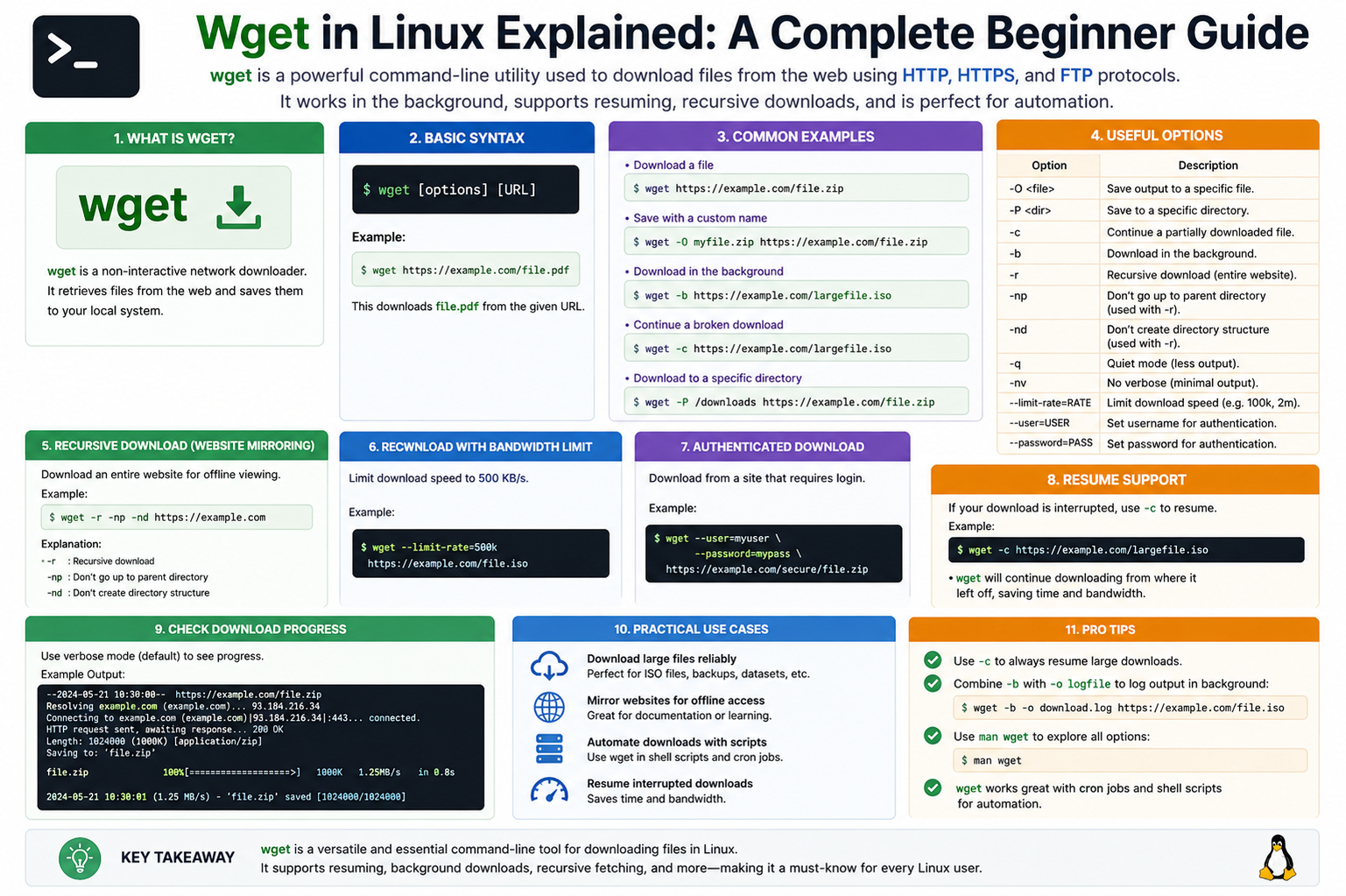
Wget plays an important role in Linux because it fits naturally into the philosophy of command-line efficiency. Linux systems often rely on tools that can be automated, scripted, and executed without heavy graphical interfaces, and Wget is a perfect example of this design approach. It allows users to interact with remote servers in a direct and controlled way, making file retrieval both predictable and efficient.
Unlike web browsers that require manual interaction, Wget is built for automation and background execution. This means it can run without user supervision once a command is issued. In server environments where graphical interfaces are often unavailable, Wget becomes an essential tool for downloading updates, retrieving backups, or accessing remote resources.
Another important aspect of Wget is its stability. It is designed to handle unstable network conditions gracefully. If a connection drops during a download, Wget can resume the process instead of restarting it from the beginning. This reduces bandwidth usage and saves time, especially when dealing with large files.
Wget also integrates well with shell scripts. This allows system administrators and developers to automate complex workflows involving file downloads. For example, a script can be written to download daily backups, fetch software updates, or synchronize data from remote servers without any manual intervention.
Installation and Availability of Wget in Linux
Wget is available in most Linux distributions by default, which makes it highly accessible to beginners. In cases where it is not pre-installed, it can be easily added using the system’s package manager. Once installed, it becomes immediately available through the terminal.
The installation process is usually straightforward and does not require advanced configuration. After installation, users can verify its presence by checking its version or running a simple command. This simplicity contributes to its popularity across different Linux environments.
Because Wget is open-source software, it is maintained and updated by the community. This ensures that it remains secure, reliable, and compatible with modern web standards. Its long history also means that it is stable and widely trusted in production systems.
Basic Structure of Wget Commands
Wget commands follow a simple and consistent structure. At its core, a command begins with the tool name followed by options and a target URL. The URL tells Wget where to fetch the file from, while options modify how the download behaves.
This structure makes it easy to learn for beginners because it does not require complex syntax. Once the basic format is understood, users can gradually explore advanced options to control downloads more precisely.
When a command is executed, Wget immediately starts connecting to the specified server. It resolves the address, establishes a connection, and begins transferring data. During this process, it displays progress information such as download speed, file size, and completion percentage.
How Wget Handles File Downloads
Wget downloads files in a sequential stream, meaning it reads data from the server and writes it directly to the local storage. This method is efficient because it minimizes memory usage and allows large files to be downloaded without performance issues.
During the download process, Wget continuously monitors the connection. If the connection remains stable, the download continues smoothly until completion. If any interruption occurs, Wget can pause and later resume the transfer from the last successful point.
This ability to recover from interruptions is one of the key reasons Wget is preferred for large-scale downloads. It reduces the risk of starting over and ensures that partially downloaded files are not wasted.
Saving Files with Wget
By default, Wget saves downloaded files in the current working directory. However, users can control where files are stored by specifying different paths. This allows better organization of downloaded content.
File naming is also handled intelligently. If a file already exists, Wget can rename the new file or overwrite it depending on the chosen settings. This prevents accidental data loss and gives users control over file management.
Wget also preserves the original file name from the server unless instructed otherwise. This makes it easier to identify downloaded files without confusion.
Downloading Multiple Files Efficiently
Wget is capable of downloading multiple files in a single session. Instead of running separate commands for each file, users can provide a list of resources to be downloaded sequentially.
This feature is particularly useful when dealing with software packages, datasets, or media files that are distributed across multiple locations. It reduces manual effort and improves productivity.
Wget processes these downloads one by one, ensuring that system resources are not overloaded. This controlled approach keeps performance stable even when handling large batches of files.
Understanding Background Downloads
One of the powerful capabilities of Wget is its ability to run in the background. This means that once a download is started, it can continue without requiring the terminal to remain active.
Background downloads are especially useful when working on remote servers or when performing long downloads that do not require monitoring. Users can initiate a download and continue working on other tasks simultaneously.
This feature enhances multitasking and makes Wget suitable for both personal and professional environments where efficiency is important.
Resuming Interrupted Downloads in Detail
Network interruptions are common, especially when downloading large files. Wget addresses this issue by allowing downloads to resume from where they stopped.
When a download is resumed, Wget checks the existing file and compares it with the remote version. It then continues downloading only the missing portion. This prevents duplication of data and saves bandwidth.
This feature is particularly valuable in environments with unstable internet connections. It ensures that progress is not lost even if the system unexpectedly shuts down or loses connectivity.
Recursive Downloading Concept
Wget is not limited to single files. It can also download entire structures of linked resources using recursive downloading. This means it can follow links from a starting point and retrieve connected files automatically.
This capability is useful for creating offline copies of web content or downloading entire sections of websites for backup purposes. However, it must be used carefully to avoid excessive server load or unintended downloads.
Recursive downloading can be configured to control depth, file types, and other parameters. This allows users to fine-tune what content is retrieved.
Mirroring Websites with Wget
One advanced use of Wget is website mirroring. This process involves copying a website’s structure and content to a local system. It can include HTML pages, images, stylesheets, and other linked resources.
Mirroring is useful for offline access or archival purposes. It creates a snapshot of a website at a specific point in time. However, it is important to use this feature responsibly and respect usage policies of websites.
Wget ensures that mirrored content maintains its original structure, making it easy to browse locally without requiring internet access.
Error Handling and Recovery
Wget is designed to handle errors gracefully. If a download fails due to a server issue or network problem, it does not crash or stop unexpectedly. Instead, it provides feedback and allows the user to retry the operation.
This robustness is one of the reasons it is widely used in production environments. It reduces downtime and ensures consistent performance even under unpredictable conditions.
Wget also logs error messages clearly, helping users understand what went wrong and how to fix it.
Using Wget in Automation Scripts
Automation is one of the strongest use cases for Wget. Because it operates entirely through the command line, it can be easily integrated into scripts that run automatically at scheduled times.
For example, system administrators often use Wget in scheduled tasks to download updates, synchronize files, or fetch remote data. Once configured, these tasks run without manual intervention.
This reduces repetitive work and ensures that systems remain updated and synchronized consistently.
Security Considerations When Using Wget
While Wget is a powerful tool, it must be used carefully from a security perspective. Since it downloads files from remote sources, users should ensure that the sources are trusted.
Downloading files from unknown or unverified locations can pose risks. It is important to verify file authenticity when working in sensitive environments.
Secure protocols like HTTPS help protect data during transfer, but users should still remain cautious about what they download.
Performance and Efficiency of Wget
Wget is known for its efficiency. It uses minimal system resources and is optimized for speed and reliability. It does not require a graphical interface, which reduces overhead and makes it suitable for low-resource systems.
Its performance remains stable even when handling multiple or large downloads. This makes it a preferred tool for servers and cloud-based environments.
Because it operates through simple commands, it executes tasks quickly without unnecessary processing layers.
Practical Use Cases of Wget
Wget is used in many real-world scenarios. Developers use it to download dependencies and software packages. System administrators use it for backups and updates. Researchers use it to collect datasets from online sources.
It is also commonly used in educational environments to demonstrate file transfer concepts. Its simplicity makes it an excellent teaching tool for understanding network-based file retrieval.
In all these cases, Wget provides a reliable and consistent method for accessing remote data.
Advanced Download Control Options in Wget
Wget becomes even more powerful when users start exploring its advanced control options. These options allow precise management of how files are downloaded, stored, and processed. Instead of just retrieving data, users can shape the entire download behavior according to their needs.
One important capability is limiting download speed. This is useful when users want to avoid consuming all available bandwidth, especially on shared networks. By controlling speed, Wget ensures that other applications and users are not affected during large downloads.
Another useful option is controlling retry attempts. In unstable network conditions, Wget can be instructed to retry a download multiple times before giving up. This improves reliability and reduces the chances of failed downloads due to temporary issues.
Timeout settings are also available, allowing users to define how long Wget should wait for a response from a server. If a server takes too long, Wget can automatically stop the attempt and move on. This prevents the system from hanging during unresponsive connections.
Customizing Output and File Naming Behavior
Wget provides flexibility in how downloaded files are named and stored. Users can choose to rename files during download, preserve original names, or assign completely custom names.
This is especially useful when downloading multiple files that may have similar names. Without customization, files could overwrite each other or become difficult to manage. Wget allows users to avoid such conflicts by controlling naming rules.
In addition, Wget can create directory structures automatically when downloading multiple files. This helps keep downloaded content organized and easy to navigate later.
Logging and Monitoring Downloads
Wget can generate logs that record detailed information about each download session. These logs include connection status, download progress, errors, and completion details.
Logging is especially useful in automated environments where downloads run without supervision. If something goes wrong, logs provide a clear record of what happened and where the issue occurred.
Users can also redirect output to files for later review. This makes it easier to track long download sessions or debug problems in scripts.
Understanding HTTP Headers in Wget
Wget can interact with HTTP headers, which are pieces of information exchanged between the client and server. These headers control how data is transferred and how the server responds to requests.
By modifying headers, users can simulate different types of requests or access restricted content in controlled environments. For example, Wget can send custom user-agent strings to identify itself as a specific browser or tool.
This feature is useful for testing, debugging, and accessing resources that behave differently depending on request type.
Authentication and Secure Access
Some online resources require authentication before allowing downloads. Wget supports basic authentication methods where users can provide credentials to access protected content.
This is useful for downloading files from private servers, restricted directories, or secured APIs. Credentials can be passed securely within commands or stored in configuration files for repeated use.
Wget also supports secure connections using encrypted protocols. This ensures that sensitive data remains protected during transfer.
Working with Cookies in Wget
Cookies are small pieces of data stored by websites to maintain session information. Wget can handle cookies to maintain login sessions or access restricted content that requires user authentication.
By storing and reusing cookies, Wget can continue a session without requiring repeated login attempts. This is useful when downloading files from websites that require authentication steps.
Cookie handling allows Wget to behave more like a browser in controlled download scenarios.
Rate Limiting and Bandwidth Management
Wget allows users to control how much bandwidth it consumes during downloads. This is known as rate limiting.
By setting limits, users can ensure that downloads do not interfere with other network activities. This is especially important in shared environments or servers with multiple active processes.
Rate limiting helps maintain system stability while still allowing large downloads to proceed in the background.
Mirroring Behavior in Detail
When Wget is used for mirroring content, it follows a structured process to recreate remote content locally. It downloads HTML pages and then recursively fetches linked resources such as images, stylesheets, and scripts.
During this process, Wget can convert links so that the mirrored content works offline. This ensures that users can browse the downloaded version just like the original site.
Mirroring is often used for backup purposes or offline reference. However, it must be used responsibly to avoid excessive resource usage on remote servers.
Depth Control in Recursive Downloads
Recursive downloading can be controlled using depth settings. Depth determines how many levels of links Wget should follow from the starting point.
A shallow depth limits downloads to directly linked files, while deeper levels allow Wget to explore more connected content. This helps prevent unnecessary downloads and keeps control over the scope of retrieval.
Depth control is important when working with large websites or structured data sources.
File Type Filtering
Wget allows users to specify which file types should be downloaded during recursive operations. This prevents unnecessary files from being downloaded and helps focus only on relevant data.
For example, users can choose to download only images, documents, or specific formats. This improves efficiency and reduces storage usage.
Filtering ensures that downloads remain organized and purposeful.
Using Wget with Scripts for Automation
One of the strongest advantages of Wget is its ability to be used in automation scripts. These scripts can run at scheduled times or triggered by system events.
For example, a script can automatically download daily reports, update system files, or synchronize remote data. Once set up, these tasks require no manual intervention.
This makes Wget an essential tool for system administrators and developers who manage repetitive tasks.
Combining Wget with Other Linux Tools
Wget is often used alongside other Linux command-line tools. It can be combined with file processing utilities, scheduling tools, and system monitoring commands.
This combination creates powerful workflows where data is downloaded, processed, and managed automatically.
For example, downloaded files can be immediately processed by another tool or moved to specific directories based on scripts.
Handling Large-Scale Downloads
Wget is well-suited for large-scale download operations. It can handle large files and multiple downloads without significant performance issues.
Its ability to resume downloads makes it especially useful when dealing with multi-gigabyte files. Even if interruptions occur, progress is preserved.
This reliability makes Wget suitable for enterprise-level environments and data-intensive tasks.
Network Efficiency and Stability
Wget is designed to operate efficiently even on unstable networks. It does not require constant user interaction and can recover automatically from temporary failures.
This stability ensures that downloads continue smoothly even under less-than-ideal conditions.
Because it minimizes unnecessary network usage, it is also efficient in environments where bandwidth is limited.
Practical Real-World Applications
Wget is used in many real-world scenarios beyond simple file downloading. It is commonly used for system backups, software distribution, data collection, and automated updates.
Researchers use it to gather large datasets from online sources. Developers use it to retrieve libraries and dependencies. Administrators use it to maintain system consistency across multiple machines.
Its versatility makes it a valuable tool across different industries.
Limitations of Wget
Despite its strengths, Wget does have some limitations. It is a command-line tool, which means it does not provide a graphical interface. This can make it less intuitive for users who prefer visual tools.
It also focuses primarily on downloading rather than uploading or complex file synchronization. For more advanced workflows, additional tools may be required.
However, within its intended purpose, Wget remains extremely efficient and reliable.
Understanding Wget Configuration Files
Wget can be controlled not only through command-line options but also through configuration files. These files allow users to define default behaviors so they do not need to repeat long commands every time they run a download.
A configuration file can store settings such as download directories, retry limits, timeouts, and logging preferences. When Wget starts, it automatically reads these settings and applies them. This makes the tool more efficient for users who perform repetitive tasks.
Using configuration files also reduces errors because commonly used options are predefined. Instead of remembering complex command combinations, users can rely on consistent system-wide settings.
Improving Productivity with Default Settings
Setting default behaviors in Wget helps improve productivity significantly. For example, if a user always wants downloads saved in a specific folder, this can be defined once instead of typing it every time.
Similarly, retry rules and timeout settings can be standardized. This ensures that every download follows the same behavior, making workflows predictable and organized.
For system administrators, this consistency is extremely useful because it reduces manual work and ensures uniform behavior across scripts and systems.
Working with Proxy Servers in Wget
In some environments, internet access is managed through proxy servers. Wget supports proxy configuration, allowing it to route requests through these intermediaries.
This is important in corporate or restricted networks where direct access to external servers is not allowed. By configuring proxy settings, Wget can still download files without breaking network policies.
Proxy support also allows better control over traffic and can improve security by filtering requests through controlled gateways.
Understanding Redirection Handling
Web servers often use redirection to move users from one location to another. Wget is capable of following these redirects automatically.
When a request is made, and the server points to a different location, Wget continues the process without user intervention. This ensures that downloads are not interrupted due to changes in file locations.
This feature is especially useful when working with dynamic websites where file paths may change frequently.
Handling Large File Transfers Efficiently
Wget is optimized for large file transfers. It avoids unnecessary memory usage by streaming data directly to disk rather than storing it in memory.
This approach allows it to handle files of very large sizes without performance degradation. Even on low-resource systems, Wget continues to operate smoothly.
Its efficiency makes it suitable for downloading operating system images, software packages, and large datasets.
Security Practices When Using Wget
Security is an important consideration when using any download tool. Wget supports secure protocols that encrypt data during transfer, helping protect sensitive information.
However, users should still verify the authenticity of downloaded files. Even secure connections cannot guarantee that the source itself is trustworthy.
It is also recommended to avoid downloading executable files from unknown sources, as they may contain harmful content.
Using Wget for Backup Purposes
Wget can be used as a simple backup tool in certain scenarios. It can download copies of remote files and store them locally for safekeeping.
This is especially useful for backing up publicly accessible data or synchronizing remote resources with local storage.
Although it is not a full backup solution like specialized tools, it provides a lightweight and effective method for basic backup tasks.
Understanding Wget Limitations in Depth
While Wget is powerful, it is not designed for all types of file transfer tasks. It primarily focuses on downloading content and does not support advanced synchronization features like two-way syncing.
It also does not provide a graphical interface, which may limit usability for beginners who are unfamiliar with terminal commands.
Despite these limitations, its simplicity is also its strength. It performs its core function extremely well without unnecessary complexity.
Performance Optimization Techniques
Users can optimize Wget performance by adjusting settings such as connection limits, retries, and timeout values. These adjustments help balance speed and stability based on network conditions.
In high-speed networks, Wget can be configured to use more aggressive settings for faster downloads. In slower environments, more conservative settings improve reliability.
Proper optimization ensures that Wget performs efficiently under different conditions.
Error Recovery and Resilience
Wget is designed to recover from errors without user intervention. If a download fails due to network issues, it can automatically retry the process based on predefined settings.
This resilience makes it highly reliable in unstable environments. It reduces the need for manual restarts and ensures continuity in long-running download tasks.
Error handling is one of the key reasons Wget is trusted in professional environments.
Integrating Wget into System Workflows
Wget can be integrated into broader system workflows where it acts as a data retrieval component. Once files are downloaded, other processes can automatically process or analyze them.
This integration allows users to build automated pipelines where data flows from download to processing without manual steps.
Such workflows are common in data analysis, system administration, and software deployment environments.
Scheduling Downloads Automatically
Linux systems often include scheduling tools that can trigger Wget commands at specific times. This allows downloads to happen automatically during off-peak hours.
For example, large updates can be scheduled overnight to avoid network congestion. This improves efficiency and reduces impact on system performance during active hours.
Scheduled downloads are widely used in enterprise environments.
Understanding Network Behavior with Wget
Wget interacts directly with network protocols, making it a useful tool for understanding how file transfers work. It reveals details such as response times, connection speeds, and server behavior.
By observing Wget output, users can gain insights into network performance and identify potential issues.
This makes it a useful learning tool for those studying networking concepts.
Cross-System Compatibility
Wget is available across many Unix-like systems, not just Linux. This makes it a portable tool that works in different environments without modification.
Its consistent behavior across systems ensures that scripts written on one machine can be used on another without changes.
This portability is one of the reasons it remains widely adopted.
Community Support and Development
Wget is maintained by a global open-source community. This ensures continuous improvements, bug fixes, and compatibility updates.
Because of its long history, it has been tested extensively in real-world environments. This contributes to its stability and reliability.
Community support also means that documentation and usage examples are widely available.
Real-World Importance of Wget
Wget continues to play an important role in modern computing environments. It is used in cloud systems, servers, development environments, and research projects.
Its simplicity and reliability make it suitable for both small tasks and large-scale operations.
Even with the availability of newer tools, Wget remains relevant due to its efficiency and minimal resource usage.
Wget Guide
Wget is a foundational tool in Linux that enables efficient file downloading and automation. Across its basic and advanced features, it provides users with control, reliability, and flexibility.
From simple file retrieval to complex automated workflows, Wget adapts to a wide range of needs. Its ability to handle interruptions, manage large downloads, and integrate with scripts makes it essential in both personal and professional environments.
Understanding Wget gives users a strong advantage in mastering Linux systems and working more effectively in command-line environments.
Working with Wget for Data Collection Tasks
Wget is frequently used for collecting data from online sources in a structured way. Because it can retrieve multiple files and follow links automatically, it becomes useful in situations where large amounts of publicly available information need to be gathered for analysis or storage.
This capability is often used in research environments, where datasets are spread across multiple files or directories. Instead of manually downloading each item, Wget can automate the entire process and ensure consistency in the collected data.
It also allows selective downloading, which means users can focus only on specific types of content instead of retrieving everything available. This improves efficiency and reduces unnecessary storage usage.
Using Wget in Development Workflows
In software development environments, Wget is often used to fetch dependencies, libraries, or external resources required for building applications. Developers can automate the retrieval of these components so that setup processes become faster and more reliable.
It is also useful in continuous integration workflows where systems need to automatically download the latest versions of files before running tests or builds. This ensures that development environments stay updated without manual intervention.
Because Wget operates through simple commands, it can be easily integrated into build scripts and deployment pipelines.
Understanding Connection Management in Wget
Wget manages network connections efficiently by establishing a connection only when needed and closing it after the transfer is complete. This reduces unnecessary network load and improves system performance.
It also handles multiple connection attempts intelligently. If a server is slow or temporarily unavailable, Wget waits and retries according to defined rules. This ensures that downloads are not abandoned prematurely.
This structured approach to connection management makes Wget stable even in unpredictable network environments.
Exploring Recursive Depth Control in Detail
When using recursive downloading, controlling depth becomes very important. Depth defines how far Wget should follow links from the original source.
A shallow depth ensures that only directly linked resources are downloaded, while deeper levels allow Wget to explore multiple layers of connected content. However, deeper downloads can significantly increase the amount of data retrieved.
By carefully adjusting depth settings, users can balance between completeness and efficiency. This is especially useful when working with large or complex websites.
File Conversion and Link Adjustment Behavior
When Wget downloads web content, it can adjust internal links so that the downloaded version works properly offline. This ensures that pages remain functional even without an internet connection.
This process involves rewriting links to point to local files instead of remote servers. As a result, users can navigate the downloaded content just like they would on a live website.
This feature is particularly useful when creating offline archives or educational resources.
Handling Dynamic Content Challenges
Modern websites often use dynamic content that changes based on user interaction or server-side scripts. Wget is primarily designed for static content retrieval, which means it may not fully capture dynamically generated content.
However, it can still be useful for downloading the static components that support such websites. In more complex cases, additional tools may be required to complement Wget.
Understanding this limitation helps users choose the right tool for the right task.
Using Wget in Educational Environments
Wget is often introduced in educational settings to teach basic networking and command-line skills. Its simplicity makes it ideal for demonstrating how data is transferred over the internet.
Students can learn how servers respond to requests, how files are downloaded, and how network protocols function in practice. This hands-on experience helps build a strong foundation in system and network understanding.
Because it requires only a terminal, it is accessible even on minimal systems.
System Resource Efficiency of Wget
One of the strengths of Wget is its low resource usage. It does not require a graphical interface or heavy background services, which keeps CPU and memory usage minimal.
This makes it suitable for older systems or servers where resources must be conserved. Even when handling large downloads, Wget remains stable and efficient.
Its lightweight nature ensures that it does not interfere with other system processes.
Error Messages and Troubleshooting Basics
When issues occur during downloads, Wget provides clear error messages that help identify the problem. These messages may include connection failures, file access issues, or server-related errors.
Understanding these messages allows users to troubleshoot problems quickly. Most issues can be resolved by checking network connectivity, verifying URLs, or adjusting retry settings.
Wget’s transparency in reporting errors makes it easier to maintain and debug download processes.
Best Practices for Using Wget Effectively
To use Wget effectively, it is important to follow certain best practices. Organizing downloads into specific directories helps maintain a clean file structure.
Using configuration settings for repetitive tasks reduces the need for long commands and minimizes errors. It is also recommended to monitor large downloads occasionally to ensure they are progressing as expected.
Responsible usage is important when downloading content from external sources to avoid unnecessary server load.
Wget in Modern Linux Environments
Even with the availability of newer tools and graphical download managers, Wget continues to be widely used in modern Linux environments. Its reliability, simplicity, and automation capabilities keep it relevant.
It integrates well with modern cloud systems, virtual machines, and containerized environments. Many automated systems still rely on Wget for essential download operations.
Its long-standing presence in Linux ensures compatibility and trust across different platforms.
Conclusion
Wget is a powerful and dependable command-line tool that plays a crucial role in Linux systems. It goes far beyond simple file downloading by offering automation, recursive retrieval, secure access, and strong error recovery features.
Across different environments—whether development, administration, research, or education—Wget provides a consistent and efficient way to handle file transfers. Its ability to work without a graphical interface makes it ideal for servers and lightweight systems, while its scripting support enables advanced automation.
Although it has limitations in handling dynamic web content and lacks a visual interface, its strengths in speed, reliability, and simplicity make it one of the most valuable utilities in the Linux ecosystem. Mastering Wget gives users a strong foundation in command-line operations and improves overall efficiency in managing remote data.