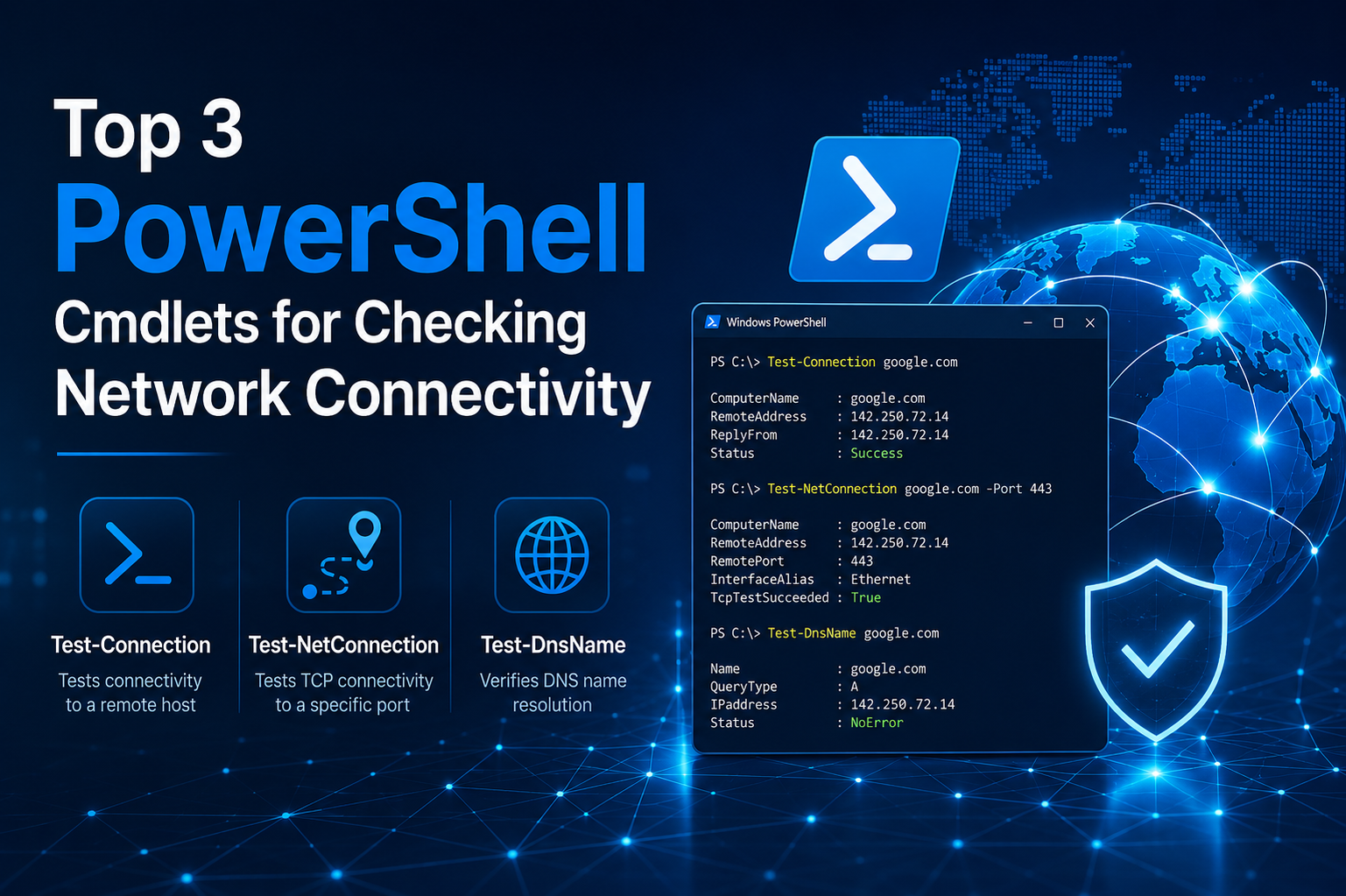
Test-Connection is one of the most fundamental and widely used PowerShell cmdlets for verifying basic network connectivity between a local machine and a remote host. It functions similarly to the traditional ping utility, but it is more flexible, script-friendly, and integrated into the PowerShell ecosystem, making it ideal for automation and advanced troubleshooting scenarios.
At its core, Test-Connection sends Internet Control Message Protocol (ICMP) echo requests to a target system and waits for replies. If the target responds, it confirms that there is a reachable network path between the two systems. This simple mechanism makes it extremely useful for quickly determining whether a device is online, whether a server is reachable, or whether there are basic network disruptions.
One of the strengths of Test-Connection is its ability to return structured objects instead of plain text output. This allows system administrators and network engineers to further process the results programmatically. Instead of just seeing a success or failure message, users can extract response time, destination address, buffer size, and other diagnostic information. This structured output becomes especially valuable when building automated monitoring scripts or diagnostic tools.
Test-Connection also supports parameters that enhance its usefulness. For example, it can send multiple packets instead of just one, allowing you to evaluate packet loss or intermittent connectivity issues. It can also operate in quiet mode, returning only a Boolean result that indicates whether connectivity exists. This is particularly useful in scripts where decisions depend on simple success or failure conditions.
Another useful aspect is its ability to test multiple hosts in a single command. This makes it efficient when checking connectivity across a range of servers or devices. Instead of manually pinging each system, administrators can pass a list of targets and quickly identify which systems are reachable and which are not.
In real-world troubleshooting, Test-Connection is often the first tool used. When a system behaves unexpectedly, verifying basic connectivity is the logical starting point. If Test-Connection fails, the issue is likely at the network layer or below. If it succeeds, attention can shift to higher-level services such as DNS, application ports, or authentication systems.
Despite its simplicity, Test-Connection remains a powerful diagnostic tool. It helps confirm network availability, measure latency, and detect packet loss in a straightforward and efficient manner. It is especially valuable in environments where quick validation is required before deeper troubleshooting begins.
Test-NetConnection
Test-NetConnection is a more advanced and versatile cmdlet designed for comprehensive network diagnostics. While Test-Connection focuses primarily on ICMP-based reachability, Test-NetConnection expands its capabilities to include TCP connectivity testing, routing analysis, and detailed network information gathering.
One of the most important features of Test-NetConnection is its ability to test specific ports. This is critical in modern network environments where services rely on TCP or UDP communication rather than simple ICMP responses. For example, even if a server responds to ping requests, it does not guarantee that a web service, database, or application port is accessible. Test-NetConnection bridges this gap by allowing direct testing of port connectivity.
When a port is specified, the cmdlet attempts to establish a TCP connection to that port on the target system. If the connection succeeds, it confirms that the service is listening and accessible through the network. If it fails, it indicates that the port may be blocked by a firewall, the service may not be running, or there may be a routing issue preventing access.
Another powerful capability of Test-NetConnection is its ability to perform route analysis. It can trace the path that packets take to reach a destination, similar to traceroute functionality. This helps identify where network delays or failures occur along the path. If connectivity fails, administrators can determine whether the issue lies within the local network, an intermediate router, or the destination network.
Test-NetConnection also provides detailed information about the network interface being used, the source IP address, and the DNS resolution results. This level of detail makes it extremely useful in complex environments where multiple network adapters, VPN connections, or routing rules may be involved.
Additionally, it supports predefined common service ports such as HTTP, HTTPS, and Remote Desktop Protocol. This simplifies testing common services without needing to remember specific port numbers. By selecting a service type, administrators can quickly verify whether essential services are reachable.
In troubleshooting scenarios, Test-NetConnection is often used after initial connectivity has been confirmed. If basic ping tests succeed but applications still fail, this cmdlet helps determine whether the problem lies at the port or service level. It effectively bridges the gap between simple reachability testing and deep network diagnostics.
Overall, Test-NetConnection is an essential tool for modern network troubleshooting because it provides a complete view of connectivity, including both network path validation and service-level accessibility.
Resolve-DnsName
Resolve-DnsName is a powerful cmdlet used to diagnose and validate Domain Name System resolution. Since DNS plays a critical role in network communication by translating human-readable names into IP addresses, any issues in DNS resolution can appear as network connectivity problems even when the underlying network is functioning correctly.
This cmdlet allows users to query DNS records directly and analyze how domain names are resolved. It can retrieve different types of DNS records, including A records, AAAA records, MX records, NS records, and PTR records. Each of these record types provides different information about how a domain is configured and how it should be reached.
One of the key strengths of Resolve-DnsName is its ability to show detailed resolution paths. It can reveal which DNS server responded, how long the query took, and whether recursion was required. This information is crucial when diagnosing slow or failing name resolution issues.
DNS problems are often misleading because they can mimic general network failures. For example, if a system cannot resolve a domain name, it may appear as though the server is offline. In reality, the server may be fully operational, but the DNS system is failing to translate its name into an IP address. Resolve-DnsName helps isolate these issues quickly.
Another important feature is its ability to perform reverse DNS lookups. This means it can take an IP address and determine the associated domain name. This is useful in environments where security logging, network auditing, or traffic analysis is required.
Resolve-DnsName is also valuable for verifying DNS propagation. When changes are made to DNS records, such as updating an IP address or modifying a hostname, it may take time for these changes to propagate across the network. Using this cmdlet, administrators can confirm whether the updated records are visible from different DNS servers.
In troubleshooting workflows, Resolve-DnsName is often used alongside connectivity tests. If Test-Connection or Test-NetConnection fails due to hostname resolution issues, Resolve-DnsName is used to confirm whether DNS is the root cause. If DNS resolution fails, the issue is isolated from the network layer and moved into name resolution configuration.
It also helps detect misconfigurations such as incorrect DNS entries, outdated records, or unreachable DNS servers. These issues are common in complex enterprise environments where multiple DNS zones and servers are in use.
Overall, Resolve-DnsName is a critical tool for diagnosing one of the most common and misunderstood layers of network connectivity: name resolution.
Practical Network Troubleshooting Approach Using These Cmdlets
When combined, Test-Connection, Test-NetConnection, and Resolve-DnsName form a complete toolkit for diagnosing network issues from the simplest to the most complex scenarios.
A typical troubleshooting process often begins with Test-Connection to verify basic reachability. If a host does not respond, it immediately suggests a network-level issue such as disconnection, routing failure, or firewall blocking ICMP traffic.
If basic connectivity exists but services are still unavailable, Test-NetConnection becomes the next step. By testing specific ports and analyzing routing paths, it helps determine whether the issue lies with service availability, firewall rules, or intermediate network devices.
If connectivity problems are related to hostname resolution, Resolve-DnsName is used to confirm whether DNS is functioning correctly. It helps identify whether domain names are being resolved properly or whether incorrect DNS entries are causing failures.
Together, these tools allow a structured and layered approach to troubleshooting. Instead of guessing the source of a problem, administrators can systematically isolate each layer of the network stack, from DNS resolution to transport connectivity and finally to basic reachability.
This methodical approach not only saves time but also reduces the risk of misdiagnosis. In complex environments, network issues often appear similar on the surface, but these cmdlets help separate symptoms from root causes.
Conclusion
Understanding and effectively using Test-Connection, Test-NetConnection, and Resolve-DnsName provides a strong foundation for diagnosing and resolving network connectivity issues in PowerShell. Each cmdlet serves a distinct purpose within the troubleshooting workflow, covering different layers of the network stack.
Test-Connection offers a simple and reliable way to verify basic reachability and latency. Test-NetConnection extends diagnostic capabilities into port-level and route-level analysis, making it essential for service troubleshooting. Resolve-DnsName focuses on name resolution, ensuring that domain-to-IP translation is functioning correctly.
When used together, these cmdlets create a complete and structured approach to network troubleshooting. They allow administrators to move from basic connectivity checks to deep diagnostic analysis without relying on external tools. This makes them invaluable in both everyday administration and complex network environments where reliability and speed of diagnosis are critical.