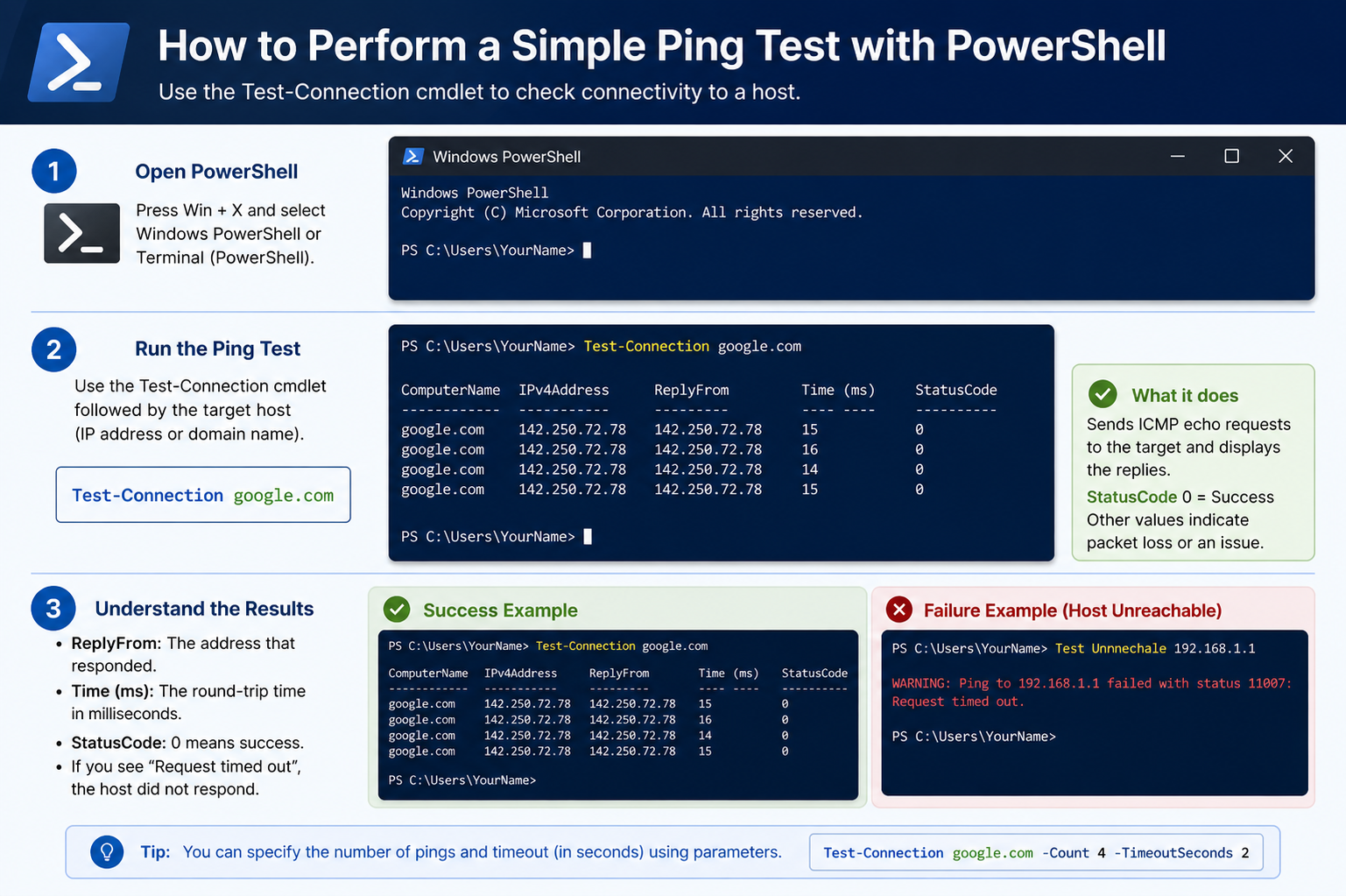
A ping test is one of the most basic yet powerful network diagnostic methods used in PowerShell. It works by sending small packets of data, known as ICMP echo requests, from your computer to a target device such as another computer, a router, or a server. The target device then replies with an echo response. This simple exchange helps confirm whether communication between two points on a network is possible.
When you run a ping test, you are essentially asking, “Are you there, and how fast can you respond?” The speed and reliability of these responses provide useful insight into the health of the network connection.
Why Ping Testing is Important in Network Troubleshooting
Ping testing is often the first step in diagnosing network problems because it quickly shows whether a connection exists at all. If a ping fails completely, it usually means the target is unreachable due to network failure, incorrect addressing, or firewall restrictions.
If the ping succeeds but response times are very high, it may indicate congestion, weak wireless signals, or overloaded network equipment. Consistent packet loss can suggest instability in the connection, which may affect applications like video calls, online gaming, or file transfers.
Because of its simplicity, ping testing is widely used by both beginners and IT professionals to isolate problems before moving to more advanced troubleshooting steps.
Preparing to Use PowerShell for Network Testing
Before performing a ping test, it is important to ensure that PowerShell is properly accessible on your system. It runs on most modern Windows environments and does not require additional installation. Once opened, PowerShell provides a command-line interface where network diagnostic commands can be executed efficiently.
You do not need administrative privileges for basic ping tests, although some advanced network diagnostics may require elevated permissions.
Executing a Basic Ping Test in PowerShell
To perform a simple ping test, you enter a command that sends requests to a specific destination. This destination can be another device on your local network or any reachable external system. Once the command is executed, PowerShell begins sending packets and waiting for responses.
Each successful reply indicates that the target is reachable. The output also includes timing information that shows how long each response took to return. These values are measured in milliseconds and help determine the speed of the connection.
Understanding the Structure of Ping Output
When reviewing ping results, you will typically see multiple lines of responses followed by a summary. Each response line contains important details such as the size of the packet, the source of the reply, the time taken for the round trip, and the time-to-live value.
The time value is especially important because it shows network latency. Lower values indicate faster communication, while higher values suggest delays in transmission.
At the end of the test, a summary is displayed showing how many packets were sent, how many were received, and how many were lost. This summary helps you quickly evaluate the quality of the connection.
Continuous Ping Testing for Stability Checks
In many troubleshooting scenarios, a single ping test is not enough to fully understand network behavior. Instead, continuous ping testing is used to observe how a connection behaves over time.
By sending repeated requests, you can monitor fluctuations in response time and detect intermittent issues that may not appear in a short test. This is especially useful for identifying unstable Wi-Fi connections or overloaded networks that only fail occasionally.
Continuous testing helps reveal patterns such as periodic delays, sudden spikes in latency, or random packet loss. These patterns are often critical in diagnosing complex network problems.
Analyzing Packet Loss and Its Meaning
Packet loss occurs when one or more data packets fail to reach their destination. In a healthy network, packet loss should be zero or extremely rare. Even small amounts of loss can cause noticeable issues in real-time communication applications.
If packet loss is detected during a ping test, it may indicate problems such as poor signal strength, faulty cables, overloaded routers, or network interference. Identifying packet loss early can help prevent larger connectivity issues.
Latency and Its Impact on Network Performance
Latency refers to the time it takes for a data packet to travel from the source to the destination and back again. In ping tests, this is measured in milliseconds.
Low latency indicates a fast and responsive network, while high latency suggests delays. These delays may be caused by long physical distances, network congestion, or inefficient routing paths.
Understanding latency is essential for diagnosing performance issues, especially in applications that require real-time interaction such as voice calls or online gaming.
Using Ping to Test Local Network Devices
Ping testing is not limited to external connections. It is often used within local networks to verify communication between devices such as computers, printers, and routers.
If a local device does not respond to a ping, it may be powered off, disconnected, or incorrectly configured. Testing local connectivity helps isolate whether a problem exists within the internal network or outside of it.
This step is particularly useful in office environments where multiple devices depend on a shared network infrastructure.
Testing External Connectivity with Ping
In addition to local testing, ping can be used to check external connectivity. This helps determine whether a system can reach outside networks through the internet.
If external ping tests fail while local tests succeed, the issue may lie with the internet connection or routing configuration. On the other hand, successful external pings confirm that the system can communicate beyond its local environment.
This distinction is crucial when diagnosing whether a problem is internal or external in nature.
DNS Resolution and Ping Behavior
When a domain name is used in a ping test, the system first attempts to resolve it into an IP address. This process is called DNS resolution. If DNS is not functioning correctly, the ping test may fail even if the network is otherwise working.
In such cases, testing with a direct IP address can help determine whether the issue is related to DNS or general connectivity.
Understanding this distinction helps avoid confusion when interpreting ping results.
Firewall and Security Considerations in Ping Testing
Some devices or networks may block ping requests for security reasons. Firewalls can be configured to ignore ICMP traffic, which means that even if a device is online, it may not respond to ping tests.
This can sometimes lead to false assumptions about connectivity issues. Therefore, it is important to consider security settings when interpreting results. A failed ping does not always mean a device is unreachable; it may simply be configured not to respond.
Using PowerShell’s Advanced Network Testing Options
PowerShell provides more advanced tools beyond basic ping functionality. One of the most useful is a built-in network testing command that offers additional control and detailed output.
This advanced option allows multiple test packets, customizable intervals, and structured results that can be analyzed more deeply. It is especially useful for automation and scripting scenarios where repeated testing is required.
Unlike simple ping output, advanced testing results can be processed programmatically for reporting or monitoring purposes.
Comparing Single vs Multiple Ping Requests
A single ping request provides only a snapshot of network performance at one moment in time. While useful for quick checks, it does not reveal long-term stability.
Multiple ping requests, on the other hand, provide a broader view of network behavior. By analyzing several responses, you can identify trends such as increasing latency or inconsistent packet delivery.
This comparison is important when diagnosing intermittent issues that do not appear consistently.
Interpreting Time-to-Live Values in Ping Results
Each ping response includes a value known as time-to-live, which indicates how many network hops the packet can make before being discarded.
This value helps determine how far the target device is in terms of network routing. Lower values may suggest more intermediate devices between the source and destination, while higher values indicate a more direct path.
Although not always critical for basic troubleshooting, TTL values can provide additional insight into network structure.
Using Ping in Automated Scripts
PowerShell allows ping tests to be integrated into automated scripts. This is useful for system administrators who need to monitor network health regularly without manual intervention.
Scripts can be designed to run periodic tests, log results, and even trigger alerts if connectivity issues are detected. This makes ping testing a valuable part of automated network monitoring systems.
Automation ensures that network issues are detected quickly, even when no one is actively performing tests.
Real-World Scenarios Where Ping Testing Helps
Ping testing is commonly used in real-world troubleshooting situations. For example, if a website is not loading, a ping test can help determine whether the issue is with the internet connection or the website itself.
In office environments, ping tests can confirm whether shared resources like printers or file servers are accessible. In home networks, they can help diagnose Wi-Fi instability or router problems.
Because of its simplicity and speed, ping remains one of the first tools used in almost any network investigation.
Advanced Ping Options in PowerShell
PowerShell provides more than just the basic ping-style check. Instead of relying only on the traditional command behavior, you can use built-in networking commands that offer deeper control and more structured output. One of the most commonly used alternatives is a command that performs the same function as ping but in a more flexible and script-friendly way.
This approach allows you to specify how many requests to send, how fast they should be sent, and how the results should be displayed. Unlike basic output, the information can be easily stored, filtered, or reused in scripts for automated troubleshooting. This makes it especially useful for administrators who need consistent monitoring rather than one-time checks.
The advantage of using advanced options is that you gain better visibility into network behavior over time, rather than just a single snapshot.
Understanding Response Variations in Network Tests
When running repeated network tests, you may notice that not all responses are identical. Some replies may arrive faster, while others take slightly longer. These variations are normal to a certain extent, but large inconsistencies often indicate underlying issues.
Small fluctuations in response time are usually caused by normal network traffic, routing changes, or temporary congestion. However, when delays become frequent or extreme, it may suggest instability in the connection path.
Recognizing these variations helps you understand whether your network is healthy or struggling under load.
Identifying High Latency Problems
High latency is one of the most common issues detected during network testing. It refers to delayed responses between the source and destination. While occasional delays are normal, consistently high response times can affect performance significantly.
High latency can be caused by several factors such as weak wireless signals, overloaded routers, long physical distances between devices, or inefficient routing paths. In some cases, background applications consuming bandwidth may also contribute to the issue.
By observing repeated test results, you can determine whether latency is stable, improving, or worsening over time.
Detecting Intermittent Connectivity Issues
Some network problems do not appear consistently, which makes them harder to diagnose. Intermittent connectivity issues may cause occasional packet loss or sudden spikes in response time.
A single test may not reveal these problems, which is why repeated testing is important. When multiple tests show random failures or irregular delays, it usually indicates instability somewhere in the network path.
These issues are often related to loose cables, weak wireless signals, overloaded network devices, or temporary ISP disruptions.
Using Continuous Monitoring for Stability Analysis
Continuous monitoring involves running repeated network tests over a period of time to observe patterns. Instead of focusing on one result, you analyze how the connection behaves across many attempts.
This method helps identify subtle problems that may not be obvious in short tests. For example, a connection might appear stable initially but degrade after several minutes due to congestion or overheating network equipment.
By monitoring trends, you gain a more accurate understanding of real network performance.
Logging Ping Results for Later Review
In many troubleshooting scenarios, it is useful to save test results for later analysis. PowerShell allows output to be captured and stored so that it can be reviewed after testing is complete.
Logging results helps identify patterns that are not immediately visible. For example, you may notice that failures occur at specific times of day or under certain conditions.
This historical view is especially helpful when diagnosing recurring issues that cannot be reproduced on demand.
Understanding Packet Loss Patterns
Packet loss does not always occur randomly. In some cases, it follows a pattern that can reveal the root cause of the problem. For example, consistent loss during peak hours may indicate network congestion, while random loss may suggest hardware issues.
Even small percentages of packet loss can affect performance in sensitive applications. Voice communication, video streaming, and online gaming are particularly affected because they rely on real-time data transmission.
By analyzing when and how packet loss occurs, you can narrow down the cause more effectively.
Difference Between Local and External Failures
When a ping test fails, it is important to determine whether the issue is local or external. Local failures occur within your own network, while external failures happen beyond your network boundary.
If local devices respond correctly but external destinations do not, the problem is likely related to internet connectivity or routing beyond your network. If both local and external tests fail, the issue is more likely within your internal network setup.
Separating these two scenarios is one of the most important steps in troubleshooting.
Role of Firewalls in Blocking Ping Responses
Firewalls are designed to protect systems by controlling incoming and outgoing traffic. In many cases, they block ping requests by default. This means that even if a device is functioning normally, it may not respond to network tests.
This behavior can sometimes be misleading because a failed test does not always mean the device is offline. It may simply be configured to ignore specific types of network requests for security reasons.
Understanding this helps prevent incorrect assumptions during troubleshooting.
IPv4 and IPv6 Behavior in Network Testing
Modern networks often support both IPv4 and IPv6 protocols. Depending on how a system is configured, ping tests may use either of these protocols.
In some cases, one protocol may work while the other fails. This can indicate configuration issues or partial connectivity problems. Testing both types of addresses can help identify whether the issue is protocol-specific.
This distinction is becoming increasingly important as networks transition toward dual-stack environments.
Analyzing Routing Path Behavior
Although basic ping tests do not show full routing paths, repeated testing can sometimes reveal indirect signs of routing problems. For example, increased latency or sudden jumps in response time may indicate that traffic is taking a longer route than expected.
Routing inefficiencies can occur due to network congestion, ISP decisions, or changes in network infrastructure. These issues are often outside the control of the end user but can still affect performance significantly.
Understanding routing behavior helps explain why some connections feel slower than others even when they are technically functional.
Using Ping for Performance Comparison
Ping tests can also be used to compare performance between different networks or devices. By running tests from multiple locations or connections, you can evaluate which setup provides better responsiveness.
This is useful when choosing between wired and wireless connections, or when comparing different internet service conditions.
Even small differences in latency can become noticeable in real-time applications.
Common Error Messages and Their Meaning
During network testing, you may encounter different types of error messages. Each one provides clues about the underlying issue.
A timeout message usually means the target did not respond within the expected time. This could be due to network congestion, blocking, or device unavailability. A general failure message may indicate incorrect addressing or network misconfiguration.
Understanding these messages helps reduce guesswork during troubleshooting.
Improving Network Stability Based on Test Results
Once you identify issues through testing, the next step is improvement. If latency is high, reducing network load or switching to a more stable connection may help. If packet loss is present, checking cables, routers, or wireless strength can improve stability.
In some cases, simply restarting network devices can resolve temporary issues. In more persistent cases, configuration adjustments may be required.
The goal is to match observed symptoms with appropriate corrective actions.
Using Ping as Part of a Larger Diagnostic Strategy
Ping testing is most effective when used as part of a broader troubleshooting process. It provides a quick way to verify connectivity, but it does not diagnose every type of network problem on its own.
When combined with other diagnostic tools and observations, it becomes a powerful first step in identifying issues. It helps narrow down whether the problem is related to connectivity, performance, or configuration.
This layered approach ensures more accurate and efficient troubleshooting.
Best Practices for Reliable Ping Testing
To get accurate results, it is important to perform tests under consistent conditions. Avoid running tests during heavy network usage if possible, as this can skew results. Running multiple tests over time gives a clearer picture than relying on a single attempt.
It is also helpful to test different targets to compare performance across multiple connections. This can reveal whether issues are isolated or widespread.
Consistency in testing leads to more reliable conclusions.
Understanding of Network Behavior Through Ping
Ping testing in PowerShell is a simple yet powerful way to understand how a network behaves. It reveals connectivity status, response speed, stability, and packet delivery performance.
While it does not provide every detail about a network, it offers essential insights that form the foundation of troubleshooting. By carefully observing results and understanding what they mean, you can quickly identify and narrow down network problems.
Over time, regular use of ping testing helps build a clearer picture of network reliability and performance patterns.
Troubleshooting Slow Network Performance Using Ping Results
When a network feels slow, ping testing can help determine whether the issue is related to actual connectivity or just application performance. If ping responses show consistently high latency, it usually confirms that the network itself is slow rather than just a single application.
Slow performance can be caused by congestion, weak signal strength, overloaded routers, or background processes consuming bandwidth. By comparing multiple ping results over time, you can identify whether the slowness is constant or occurs only during specific periods.
If ping times are stable but applications still feel slow, the issue may be related to software, server delays, or DNS resolution rather than raw network speed.
Using Ping to Differentiate Between Network and Device Issues
One of the most useful aspects of ping testing is its ability to separate network problems from device-specific issues. If a device responds to ping but applications on it are not working correctly, the problem is likely within the device itself.
For example, a server may respond to ping requests but fail to load websites or services due to internal software errors. In contrast, if ping fails completely, the issue is more likely related to connectivity or network configuration.
This distinction helps reduce troubleshooting time by narrowing down the source of the problem more quickly.
Understanding Consistent vs Inconsistent Results
Consistent ping results usually indicate a stable network connection. When response times remain similar across multiple attempts and no packets are lost, the network is generally healthy.
Inconsistent results, however, suggest instability. This may appear as sudden spikes in response time or occasional timeouts. Such behavior often points to fluctuating network conditions, interference, or hardware issues.
Recognizing the difference between consistency and instability is essential for accurate diagnosis.
Evaluating Wireless Network Stability with Ping
Wireless networks are more prone to fluctuations compared to wired connections. Ping testing is especially useful for identifying weak Wi-Fi signals or interference from other devices.
If ping results show high variation or packet loss on a wireless connection but remain stable on a wired connection, the issue is likely related to the wireless environment. This could include distance from the router, physical obstructions, or interference from other electronic devices.
By comparing both connection types, you can determine whether wireless instability is the root cause.
Checking Router Responsiveness with Local Ping Tests
Routers play a central role in network communication, and ping testing can help evaluate their performance. By pinging the router’s local address, you can check whether it is responding quickly and consistently.
If the router shows delayed responses or packet loss, it may indicate hardware stress, overheating, or configuration issues. A properly functioning router should respond with very low latency under normal conditions.
This step is useful for isolating whether the problem originates inside the local network.
Identifying External Network Path Issues
Sometimes, a network may work perfectly within the local environment but experience issues when reaching external destinations. Ping testing can help identify this situation by comparing local and external responses.
If local ping tests are stable but external ones show delays or failures, the issue likely lies outside the internal network. This may involve ISP routing, external server load, or internet backbone congestion.
This distinction is important for avoiding unnecessary changes to internal settings when the issue is beyond local control.
Understanding Temporary vs Persistent Failures
Not all ping failures indicate a serious problem. Temporary failures may occur due to brief congestion, background updates, or short-lived network interruptions.
Persistent failures, however, indicate a more serious issue that requires attention. If repeated tests continue to fail over time, it suggests a stable underlying problem such as misconfiguration, hardware failure, or blocked traffic.
Distinguishing between temporary and persistent issues helps determine the urgency of troubleshooting steps.
Using Ping to Monitor Network Changes Over Time
Networks are not static; they change based on usage, traffic load, and environmental factors. Running ping tests at different times of the day can reveal how performance changes under varying conditions.
For example, a network may perform well during low usage hours but slow down during peak times. This type of pattern often indicates congestion rather than hardware failure.
Tracking these changes helps build a complete picture of network behavior over time.
Understanding the Impact of Bandwidth Usage on Ping Results
Heavy bandwidth usage can directly affect ping results. When large downloads, uploads, or streaming activities are running, ping response times may increase temporarily.
This happens because network resources are being shared among multiple processes. As a result, smaller diagnostic packets may experience delays.
By testing ping results during both idle and active network usage, you can better understand how bandwidth affects performance.
Diagnosing ISP-Related Issues Using Ping Patterns
Internet service provider issues can sometimes be detected through consistent ping behavior. If all local devices are functioning properly but external ping tests show delays or packet loss, the ISP may be experiencing congestion or routing issues.
These problems often occur outside the user’s control but can still be identified through careful observation of ping patterns.
Repeated failures across different external targets can strengthen the likelihood of an ISP-related issue.
Recognizing Hardware-Related Network Problems
Faulty network hardware can also affect ping results. Routers, switches, and network adapters all play a role in maintaining stable connectivity.
If ping results fluctuate significantly across all tests, even in simple local setups, it may indicate hardware degradation. Overheating devices, aging components, or faulty cables can all contribute to unstable performance.
Replacing or testing hardware components can help confirm whether they are the source of the issue.
Using Ping as a Baseline for Network Performance
Ping tests can serve as a baseline measurement for network health. By recording normal response times and behavior, you create a reference point for future comparisons.
If performance changes significantly from this baseline, it becomes easier to identify when something has gone wrong. This approach is especially useful in environments where consistent performance is critical.
A baseline helps turn ping testing from a one-time check into an ongoing monitoring tool.
Understanding the Limitations of Ping Testing
While ping is a powerful diagnostic tool, it does have limitations. It only tests basic connectivity and does not measure full application performance or bandwidth capacity.
Some devices may also block ping requests entirely, which can lead to misleading results. Additionally, ping does not provide detailed information about routing paths or internal server behavior.
Because of these limitations, ping should always be used alongside other diagnostic methods for a complete analysis.
Combining Ping with Other Network Tools for Better Accuracy
To gain a more complete understanding of network health, ping testing is often combined with other tools. These may include traceroute-style diagnostics, speed testing, and system monitoring utilities.
Each tool provides a different perspective. While ping focuses on connectivity and response time, other tools reveal routing paths, bandwidth usage, and deeper performance metrics.
Using multiple tools together ensures more accurate troubleshooting results.
Improving Network Reliability Based on Observations
Once issues are identified through ping testing, improvements can be made based on observed patterns. If latency is high, reducing network congestion or upgrading equipment may help. If packet loss occurs, checking physical connections or replacing faulty components can improve stability.
In wireless environments, adjusting router placement or reducing interference can also make a significant difference.
The goal is to match specific symptoms with targeted solutions rather than making random changes.
Long-Term Value of Regular Ping Testing
Regular ping testing builds a long-term understanding of network behavior. Over time, patterns become clearer, making it easier to predict and prevent issues before they become serious.
This proactive approach helps maintain stable connectivity and reduces downtime. It also provides valuable insight into how network performance changes under different conditions.
By consistently observing results, you develop a deeper awareness of how your network behaves in real-world usage.
Advanced Interpretation of Fluctuating Ping Results
Fluctuating ping results often reveal more about network health than a simple pass or fail outcome. When response times vary significantly from one request to another, it indicates that the network is experiencing instability somewhere along the communication path.
These fluctuations can be caused by temporary congestion, inconsistent wireless signals, or background processes consuming bandwidth. In more complex cases, they may also point to routing inefficiencies between networks.
Understanding these variations requires observing patterns rather than focusing on individual results. A single high response time is not always meaningful, but repeated irregular spikes usually indicate an underlying issue.
Identifying Hidden Network Congestion Through Ping Behavior
Network congestion is one of the most common causes of degraded performance, and ping testing can help uncover it indirectly. When multiple devices share the same network, they compete for available bandwidth, which can lead to delayed responses.
In congested conditions, ping results may show increased latency during peak usage times, followed by improved performance when the network is less busy. This pattern is a strong indicator that the issue is not hardware-related but rather caused by traffic load.
By observing how ping results change throughout the day, congestion-related problems become easier to identify.
Recognizing Early Signs of Network Degradation
Network degradation does not always happen suddenly. In many cases, performance slowly worsens over time due to aging hardware, increasing traffic demands, or environmental interference.
Ping testing can help detect these early warning signs. Gradual increases in response time, even if small, may indicate that the network is under growing strain. Similarly, occasional packet loss that becomes more frequent over time can signal developing instability.
Early detection allows corrective actions before the problem becomes severe.
Understanding the Role of Background System Activity
Background applications running on a system can have a direct impact on ping results. Updates, file synchronization, cloud backups, and streaming services all consume network resources that may affect test accuracy.
When these processes are active, ping responses may become slower or less consistent. This does not always mean the network itself is faulty; instead, it may reflect temporary resource competition within the system.
For more accurate testing, it is useful to observe results both during active usage and during idle periods.
Evaluating Network Stability in Shared Environments
In shared environments such as offices, schools, or households with multiple users, network stability can vary depending on overall usage. Ping testing helps identify how well the network handles multiple simultaneous connections.
If performance drops significantly when many users are active, it suggests that the network may not have enough capacity to handle demand efficiently. On the other hand, stable ping results under heavy usage indicate a well-optimized network setup.
This type of evaluation is important for planning upgrades or improving infrastructure.
Understanding the Impact of Distance on Ping Performance
Physical distance between devices and network infrastructure plays a significant role in ping results. The farther a signal must travel, the longer it takes to complete a round trip.
In wireless networks, distance also increases the likelihood of interference and signal degradation. This often results in higher latency or inconsistent responses when compared to wired connections.
Recognizing the effect of distance helps explain why performance may vary between different locations within the same environment.
Detecting Signal Interference in Wireless Networks
Wireless networks are highly sensitive to interference from other electronic devices, physical barriers, and overlapping signals from nearby networks. Ping testing can help identify these issues by showing irregular response patterns.
When interference is present, ping results may become unstable, with sudden spikes or occasional timeouts. These patterns often appear without any visible changes in network configuration.
By testing in different locations, interference sources can often be narrowed down and reduced.
Using Ping to Validate Network Configuration Changes
Whenever changes are made to network settings, ping testing can be used to verify whether those changes improved or degraded performance. This includes modifications to routers, switches, DNS settings, or firewall rules.
Before and after comparisons are particularly useful. If ping results improve after a change, it suggests that the adjustment was beneficial. If they worsen, the change may need to be reviewed or reversed.
This feedback loop helps ensure that configuration updates produce the intended effect.
Understanding Jitter in Ping Results
Jitter refers to the variation in response times between successive ping requests. While average latency measures overall speed, jitter measures consistency.
High jitter indicates unstable network conditions where response times vary unpredictably. This is especially problematic for real-time applications such as video calls and online gaming, where consistency is more important than raw speed.
Low jitter, on the other hand, indicates a stable and predictable connection.
Comparing Wired and Wireless Ping Stability
A useful diagnostic approach is comparing ping results between wired and wireless connections. Wired connections typically provide more stable and consistent results due to direct physical connectivity.
If wireless results show instability while wired connections remain stable, the issue is likely related to wireless interference, signal strength, or environmental factors.
This comparison helps quickly isolate whether the network problem is physical or environmental.
Understanding the Role of Network Hardware Quality
The quality of network hardware has a direct impact on ping performance. Low-quality routers, outdated network adapters, or damaged cables can introduce delays and instability.
Even if the internet connection itself is strong, poor hardware can create bottlenecks that affect response times. Ping testing helps reveal these limitations by showing inconsistent or degraded performance under normal conditions.
Upgrading or replacing hardware often results in immediate improvement in stability.
Evaluating Server Responsiveness Through Ping
When testing external servers or services, ping results can provide insight into server responsiveness. High latency or packet loss when connecting to a specific server may indicate that the server is overloaded or geographically distant.
However, it is important to distinguish between server-side issues and local network problems. Testing multiple external destinations helps determine whether the issue is isolated or widespread.
This approach provides a clearer understanding of where delays originate.
Using Ping Trends for Predictive Maintenance
By analyzing ping results over time, it becomes possible to identify trends that indicate future problems. Gradual increases in latency or growing instability can signal that network components are beginning to fail or degrade.
This predictive approach allows maintenance to be performed before a complete failure occurs. It is especially useful in environments where uptime is critical.
Monitoring trends rather than individual results leads to more proactive network management.
Understanding False Positives in Ping Testing
Sometimes ping results may suggest a problem when none actually exists. These false positives can occur due to temporary routing changes, security filtering, or brief network interruptions.
A single failed ping does not necessarily indicate a serious issue. It is the repetition and consistency of failures that determine whether a real problem exists.
Understanding this helps prevent unnecessary troubleshooting steps based on misleading results.
Improving Diagnostic Accuracy with Repeated Testing
Repeated testing improves accuracy by reducing the impact of temporary fluctuations. Instead of relying on one result, multiple attempts provide a more reliable average.
This approach helps filter out random variations and highlights consistent patterns. It also reduces the chance of misinterpreting temporary network behavior as a long-term issue.
The more data collected, the more accurate the diagnosis becomes.
Building Confidence in Network Analysis Skills
Regular use of ping testing gradually builds confidence in understanding network behavior. Over time, patterns become easier to recognize, and troubleshooting becomes more efficient.
Instead of guessing, you begin to interpret results based on experience and observation. This skill is valuable in both personal and professional environments.
With consistent practice, ping testing becomes a reliable and intuitive diagnostic tool rather than just a basic command.
Conclusion
Ping testing in PowerShell is a simple but highly effective way to understand and evaluate network connectivity. It provides immediate insight into whether a device or service is reachable, how fast it responds, and whether any data is being lost during transmission.
Across different testing scenarios, ping results help reveal a wide range of issues, from weak wireless signals and network congestion to hardware faults and routing delays. Even though it is a basic diagnostic method, it plays a critical role in identifying whether a problem is local, external, temporary, or persistent.
When used consistently, ping testing becomes more than just a quick check—it turns into a reliable method for monitoring network stability over time. By observing patterns in latency, packet loss, and response consistency, it becomes easier to detect early signs of degradation before they develop into serious disruptions.
However, it is also important to understand its limitations. Ping does not measure full application performance, bandwidth capacity, or detailed routing behavior. Because of this, it works best as part of a broader troubleshooting approach rather than a standalone solution.
In practical use, combining ping results with careful observation and additional diagnostic tools leads to more accurate conclusions and faster problem resolution. With regular practice, it becomes a valuable skill for maintaining stable and efficient network performance in both simple and complex environments.