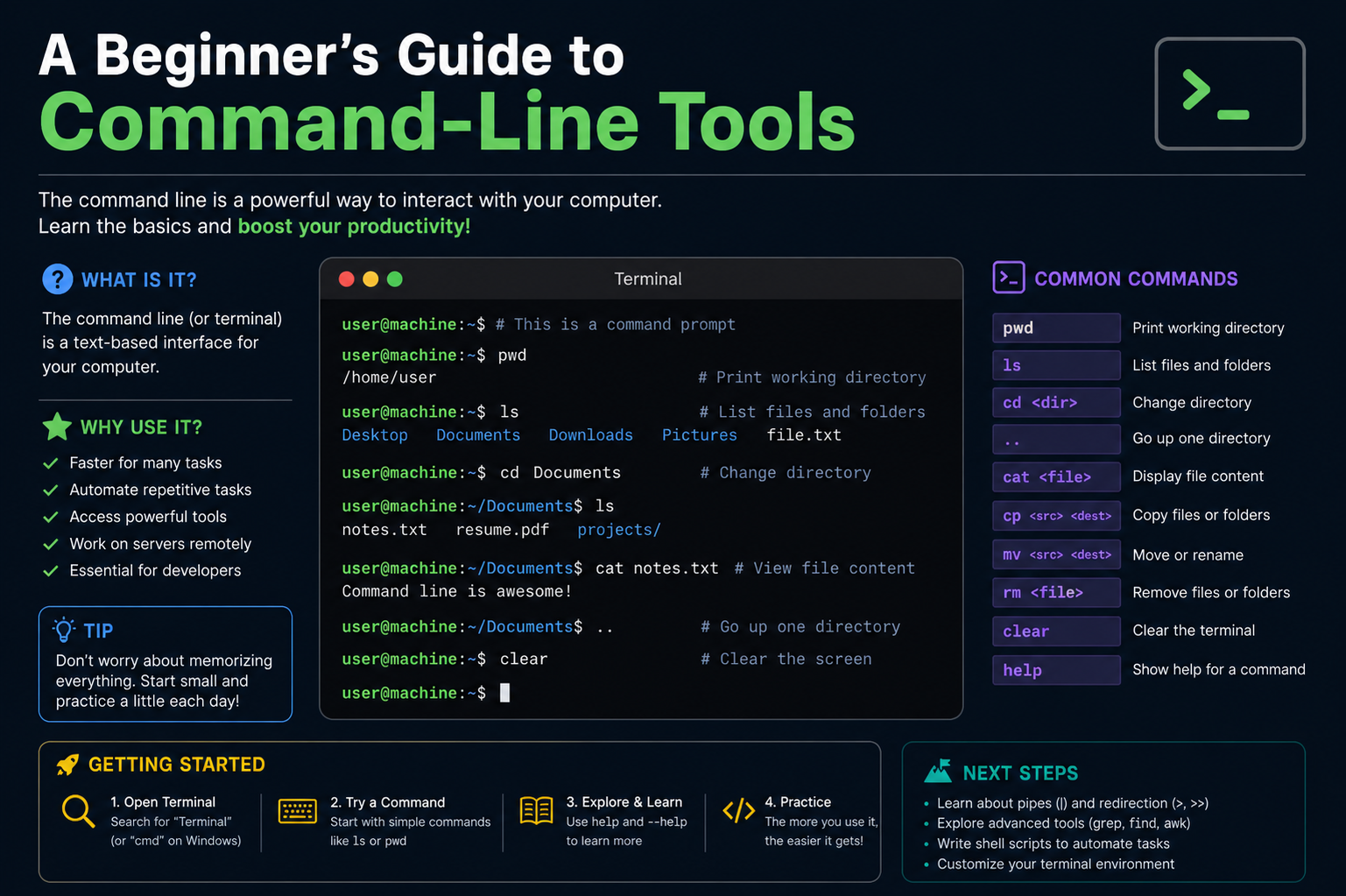
The command-line environment is a text-based interface where users interact directly with the operating system. Instead of clicking icons or navigating menus, users type instructions that the system understands and executes. This environment is commonly used in many operating systems and provides a powerful way to control a computer. Once opened, it presents a simple screen with a blinking cursor, waiting for input. Every action begins with a command, making it essential to understand how to structure and enter them correctly.
The command-line environment may look minimal, but it is highly efficient. It allows users to perform tasks quickly without the need for graphical elements. This simplicity is what makes it popular among developers and technical users. Even though it can seem intimidating at first, it becomes easier to use with regular practice.
Understanding Commands and Syntax
Commands are instructions given to the computer through the command line. Each command follows a specific structure known as syntax. Syntax determines how a command should be written so that the system can understand it correctly. A basic command usually includes the command name, followed by options and arguments that modify its behavior.
Options are additional instructions that refine what the command does, while arguments specify the target of the command. For example, a command may instruct the system to display a list of files in a folder, and an argument would indicate which folder to examine. Understanding this structure is important because even small mistakes in syntax can cause errors or unexpected results.
Learning command syntax takes time, but it becomes natural as users gain experience. Over time, users begin to recognize patterns in how commands are structured, making it easier to remember and use them effectively.
Navigating Through the System Using Commands
One of the first skills in using command-line tools is navigation. Instead of clicking through folders, users move through directories using specific commands. This allows them to switch locations within the system quickly and efficiently.
Navigation commands help users understand where they are in the system and how to move to other locations. The system keeps track of the current working directory, which is the location where commands are executed. By changing directories, users can access different files and folders without using a graphical file explorer.
This method of navigation is especially useful when working with large projects or complex folder structures. It allows users to move directly to the required location without unnecessary steps.
Working with Files and Directories
File management is one of the most common uses of command-line tools. Users can create, copy, move, rename, and delete files using simple commands. This makes file handling faster compared to graphical interfaces, especially when dealing with multiple files at once.
Directories, also known as folders, can also be created and managed through commands. Users can organize files into structured hierarchies, making it easier to locate and manage data. Commands allow users to perform bulk operations, such as moving multiple files simultaneously or deleting entire folders with their contents.
This level of control is particularly useful for developers and system administrators who work with large amounts of data and need efficient ways to manage it.
Running Programs and Executing Scripts
Command-line tools are not limited to file management; they can also be used to run programs and scripts. A script is a file that contains a series of commands that are executed in sequence. This allows users to automate tasks and reduce manual effort.
By running programs through the command line, users can often access additional options and features that may not be available in graphical versions. This makes the command line a powerful tool for advanced users who need more control over how programs operate.
Scripts are especially useful for repetitive tasks. Instead of performing the same actions repeatedly, users can write a script once and run it whenever needed. This improves efficiency and reduces the chance of errors.
Understanding System Feedback and Output
When a command is executed, the system provides feedback in the form of output. This output may include results, messages, or error notifications. Understanding this feedback is important because it helps users know whether a command was successful or if something went wrong.
Error messages are particularly useful because they indicate what needs to be fixed. Instead of guessing, users can read the message and adjust their commands accordingly. Over time, users become better at interpreting these messages and solving problems quickly.
System output is a key part of the learning process, as it helps users understand how the system responds to different commands.
Introduction to Command Options and Flags
Options and flags are special additions to commands that modify their behavior. They allow users to customize how a command works without changing its main purpose. Flags are usually short symbols or letters that are added after a command.
These options can control how much information is displayed, how a task is performed, or what type of output is generated. By combining different options, users can create more specific and powerful commands.
Understanding how to use options effectively is an important step in mastering command-line tools. It allows users to tailor commands to their exact needs and achieve more precise results.
Why Automation Matters in Command-Line Usage
One of the biggest advantages of command-line tools is automation. Automation allows users to perform tasks without manual input every time. This is done through scripts or batch commands that execute multiple steps automatically.
Automation saves time and reduces the risk of human error. It is especially useful for repetitive tasks such as file backups, system updates, or data processing. Once a script is created, it can be reused whenever needed, making it a powerful productivity tool.
Many professionals rely on automation to manage complex systems efficiently. It allows them to focus on more important tasks instead of repeating simple actions.
Common Challenges for Beginners
Learning command-line tools can be challenging at first. One of the most common difficulties is remembering commands and their syntax. Since everything is text-based, even small mistakes can cause errors.
Another challenge is understanding error messages. Beginners may find them confusing, but with practice, they become easier to interpret. It is also common to feel overwhelmed by the number of available commands.
However, these challenges decrease over time. With regular use, commands become familiar, and users develop confidence in navigating and controlling the system.
Building Confidence Through Practice
The best way to learn command-line tools is through consistent practice. Starting with simple commands and gradually moving to more complex tasks helps build confidence. Repetition plays an important role in learning, as it helps reinforce memory and understanding.
Experimenting with different commands in a safe environment allows users to learn without risk. Over time, users develop problem-solving skills and become more comfortable using the command line for various tasks.
As experience grows, the command line transforms from a complex interface into a powerful and efficient tool for managing systems and performing tasks quickly.
Advanced Command-Line Navigation Techniques
Navigation in the command line becomes more powerful when you move beyond basic directory switching and start using advanced techniques. Instead of simply moving step by step through folders, users can jump directly to deeply nested locations using shortcuts and path references. Absolute paths allow direct access from the root of the system, while relative paths help move efficiently based on the current location. This flexibility makes it easier to work in large projects where files are spread across many directories.
Another useful concept is directory history, which allows users to move back and forth between previously visited locations. This saves time and reduces the need to repeatedly type long paths. Mastering navigation techniques is essential because it forms the foundation for all other command-line operations.
File Permissions and Access Control
In many systems, not all files are accessible to every user. File permissions control who can read, modify, or execute a file. These permissions are an important part of system security and help protect important data from accidental or unauthorized changes.
Permissions are usually divided into categories such as the file owner, a group of users, and everyone else. Each category can have different levels of access. For example, a file may be readable by everyone but editable only by the owner. Understanding how permissions work is essential when working in shared environments or managing servers.
Changing permissions through the command line allows users to control access precisely. This ensures that only the right people can modify important files, reducing security risks and maintaining system stability.
Input and Output Redirection
One of the most powerful features of command-line tools is the ability to redirect input and output. Instead of displaying results on the screen, output can be sent to a file for later use. Similarly, input can be taken from a file instead of manual typing.
This feature is especially useful when working with large amounts of data. For example, the results of a command can be saved into a file for reporting or further processing. Redirection also allows users to combine multiple commands into a workflow, making complex tasks easier to manage.
By controlling where data comes from and where it goes, users gain more flexibility and efficiency in handling system operations.
Piping Commands Together
Piping is a technique that connects multiple commands so that the output of one command becomes the input of another. This allows users to build powerful workflows by combining simple tools.
Instead of running commands separately and manually processing results, piping enables automatic data flow between commands. This reduces effort and increases productivity. It is especially useful for filtering, sorting, and analyzing data directly in the command line.
Piping encourages modular thinking, where each command performs a small task, and multiple commands work together to achieve a larger goal. This approach is one of the core strengths of command-line environments.
Understanding Shell Environments
The shell is the program that interprets and executes command-line instructions. It acts as an interface between the user and the operating system. Different types of shells exist, each with its own features and syntax variations.
Some shells are designed for simplicity, while others offer advanced scripting capabilities. Regardless of the type, the shell is responsible for processing commands, managing input and output, and returning results to the user.
Understanding how the shell works helps users troubleshoot problems and optimize their workflows. It also provides insight into how commands are executed behind the scenes.
Environment Variables and System Configuration
Environment variables are dynamic values that affect how the system and applications behave. They store important information such as system paths, user settings, and configuration details.
These variables are often used by programs to determine where to find resources or how to operate in different environments. For example, a variable might define the location of installed software or specify system language preferences.
Modifying environment variables allows users to customize their system behavior. This is especially useful for developers who need to configure tools and applications in specific ways.
Writing and Running Simple Scripts
Scripts are one of the most powerful features of command-line tools. A script is a collection of commands written in a file that can be executed automatically. This allows users to perform complex tasks with a single instruction.
Writing scripts involves combining multiple commands in a logical sequence. Once created, scripts can be reused multiple times, saving effort and reducing repetitive work. They are commonly used for automation tasks such as backups, system monitoring, and software setup.
Learning to write scripts is an important step toward mastering command-line environments. It transforms manual work into automated processes, increasing efficiency significantly.
Error Handling and Troubleshooting
Errors are a normal part of working with command-line tools. When a command fails, the system provides an error message that explains what went wrong. Learning to read and understand these messages is essential for troubleshooting.
Common errors include incorrect syntax, missing files, or insufficient permissions. Each type of error has a different cause and requires a different solution. Over time, users become better at identifying patterns and fixing issues quickly.
Troubleshooting in the command line encourages logical thinking and problem-solving skills. Instead of guessing, users analyze messages and adjust their commands accordingly.
Best Practices for Using Command-Line Tools
Using command-line tools effectively requires following certain best practices. One important practice is to double-check commands before executing them, especially when performing actions that modify or delete data. Since commands execute immediately, mistakes can have significant consequences.
Organizing work into clear steps also helps maintain efficiency. Keeping scripts well-structured and readable makes them easier to maintain and update. Another best practice is to document frequently used commands for future reference.
Practicing safe and organized usage ensures a smoother and more productive experience with command-line tools.
Improving Speed and Efficiency
As users become more experienced, speed becomes an important factor. Command-line tools are already faster than graphical interfaces, but efficiency can be improved further through shortcuts and automation.
Using command history allows users to quickly repeat previous commands without retyping them. Tab completion helps reduce typing effort by automatically filling in file and command names. Combining these features significantly improves workflow speed.
Efficiency also comes from understanding which commands are most effective for specific tasks. With experience, users learn to choose the fastest and most reliable methods.
Transitioning from Beginner to Skilled User
Moving from a beginner to a skilled command-line user takes time and practice. At first, commands may feel unfamiliar and complex, but with consistent use, they become natural. Gradually, users begin to understand how different tools interact and how to combine them effectively.
Confidence grows as users solve real problems using the command line. Over time, they develop their own workflows and techniques that suit their needs. This transition is not just about learning commands but also about developing a mindset of efficiency and control.
Eventually, the command line becomes an essential tool for managing systems, automating tasks, and solving complex problems with ease.
Working with Processes in the System
Processes are running instances of programs in the operating system. When a command-line tool is used to start a program, the system creates a process to handle its execution. Each process has its own unique identifier and system resources such as memory and CPU usage.
Command-line tools allow users to view, manage, and control these processes. Users can check which programs are currently running, monitor system performance, and stop processes when necessary. This level of control is especially useful when a program becomes unresponsive or consumes too many resources.
Understanding processes helps users gain better awareness of how the system operates in real time. It also allows them to maintain system stability by managing active tasks efficiently.
Monitoring System Performance
System performance monitoring is an important aspect of working with command-line tools. It involves checking how system resources such as memory, processor usage, and storage are being used. This helps users understand the overall health of the system.
Command-line tools provide real-time information about system activity. Users can see which processes are consuming the most resources and identify potential performance issues. This is particularly useful when troubleshooting slow performance or diagnosing system problems.
By regularly monitoring performance, users can ensure that the system runs smoothly and efficiently. It also helps in planning resource usage for demanding tasks.
Managing Software and Packages
Command-line tools are widely used to install, update, and remove software. Instead of downloading applications manually, users can manage software through package management systems. These systems simplify the process by handling installation and updates automatically.
Packages are collections of software files that are installed and maintained through commands. This approach ensures that software is kept up to date and properly configured. It also reduces the risk of compatibility issues.
Managing software through the command line is faster and more efficient than traditional methods. It is especially useful in development environments where multiple tools need to be installed and updated regularly.
Understanding System Logs
System logs are records of events that occur within the operating system. They provide detailed information about system activities, errors, and warnings. Command-line tools allow users to access and read these logs for troubleshooting and analysis.
Logs are essential for understanding what happens behind the scenes. When something goes wrong, logs help identify the cause of the problem. They can show when an error occurred, which process caused it, and what conditions led to it.
Reading system logs requires practice, but it becomes easier over time. Once users understand how to interpret logs, they can diagnose and fix issues more effectively.
Security Practices in Command-Line Usage
Security is a critical aspect of using command-line tools. Since these tools provide direct access to the system, improper use can lead to serious risks. It is important to follow safe practices to protect data and system integrity.
One important practice is to avoid running unknown commands. Since commands execute immediately, malicious or incorrect instructions can cause damage. Users should also be careful when working with administrative privileges, as these allow changes to critical system settings.
Regular updates and careful permission management also contribute to system security. By following secure practices, users can reduce risks and maintain a safe computing environment.
Customizing the Command-Line Environment
The command-line environment can be customized to improve usability and efficiency. Users can modify appearance, behavior, and shortcuts according to their preferences. Customization helps create a more comfortable and productive workspace.
Common customizations include changing colors, setting default directories, and creating command shortcuts. These adjustments make the environment easier to use and reduce repetitive tasks.
Advanced users often create personalized configurations that match their workflow. This level of customization allows them to work faster and more efficiently.
Aliases and Shortcuts for Efficiency
Aliases are custom shortcuts for longer commands. Instead of typing a full command repeatedly, users can create a shorter version. This improves speed and reduces typing effort.
Aliases are especially useful for frequently used commands. They help simplify complex instructions into easy-to-remember shortcuts. Over time, users build a personal set of aliases that match their workflow.
Using shortcuts effectively can significantly increase productivity. It allows users to focus more on tasks rather than repetitive typing.
Understanding Command History
Command history is a feature that stores previously used commands. It allows users to quickly access and reuse past instructions without retyping them. This is useful for repeating tasks or correcting previous commands.
By navigating through command history, users can save time and reduce errors. It also helps in learning, as users can review past commands and understand how they were structured.
Command history is an essential feature for improving workflow efficiency and reducing repetitive effort.
Combining Tools for Advanced Tasks
One of the strongest features of command-line environments is the ability to combine multiple tools. Instead of using a single command for a task, users can connect several commands to perform complex operations.
This combination allows for powerful data processing and automation. Each tool performs a specific function, and together they create efficient workflows. This modular approach makes the command line highly flexible.
Advanced users often design multi-step processes that handle large and complex tasks with minimal manual input. This makes the system more efficient and scalable.
Understanding File Searching and Filtering
Command-line tools provide powerful search and filtering capabilities. Users can search for specific files, text, or patterns within large datasets. This is much faster than manually browsing through folders.
Filtering allows users to narrow down results based on conditions such as file type, size, or content. This makes it easier to locate specific information quickly.
These features are especially useful when working with large projects or complex file structures. They save time and improve accuracy.
Working with Archives and Compression
Archiving and compression are used to combine multiple files into a single file and reduce storage space. Command-line tools allow users to create, extract, and manage compressed files efficiently.
This is useful for backup, file sharing, and storage optimization. Compressed files take up less space and are easier to transfer.
Understanding how to work with archives is important for managing data effectively, especially in environments with limited storage.
Developing Problem-Solving Skills Through Command Line
Using command-line tools helps develop strong problem-solving skills. Since users must rely on logic and precise instructions, they learn to think systematically.
Every task requires clear steps and accurate commands. When errors occur, users must analyze the situation and find solutions. This process improves critical thinking and technical understanding.
Over time, users become more confident in handling complex problems and designing efficient workflows.
Moving Toward Advanced Command-Line Mastery
As users gain experience, they begin to use command-line tools in more advanced ways. They combine automation, scripting, and system management to handle complex tasks efficiently.
At this stage, the command line becomes more than just a tool—it becomes a powerful environment for controlling systems and workflows. Users develop their own techniques and strategies that improve productivity.
Mastery comes from continuous practice, exploration, and real-world application. With time, command-line tools become an essential part of technical expertise and professional work.
Advanced Scripting Concepts in Command-Line Tools
Scripting in command-line environments goes beyond writing simple sequences of commands. Advanced scripting involves creating structured programs that can make decisions, repeat actions, and handle complex workflows automatically. This turns the command line into a powerful programming environment.
Conditional logic allows scripts to perform different actions based on certain conditions. For example, a script can check whether a file exists before attempting to modify it. Loops enable repeated execution of tasks, which is useful for processing large sets of data. These features make scripts flexible and intelligent.
As scripts become more advanced, they can perform tasks that would otherwise require manual effort or even full applications. This level of control is one of the reasons command-line tools are widely used in system administration and development.
Debugging Scripts and Commands
Debugging is the process of identifying and fixing errors in scripts or commands. Even experienced users encounter mistakes, so understanding how to debug effectively is essential.
Common issues include syntax errors, incorrect file paths, or unexpected command behavior. Debugging involves carefully reviewing commands, testing small sections of scripts, and analyzing system output. Error messages often provide clues about what went wrong.
A systematic approach to debugging helps users resolve issues faster. Instead of guessing, they isolate problems step by step until the cause is found and corrected. This builds accuracy and confidence in command-line usage.
Understanding Data Processing in the Command Line
Command-line tools are widely used for processing data efficiently. They can read, transform, and analyze large amounts of information quickly. This makes them useful in fields like software development, data analysis, and system administration.
Data processing often involves filtering, sorting, and modifying text or files. Instead of opening files manually, users can apply commands that automatically process content based on rules. This saves time and reduces manual effort.
The ability to handle large datasets with simple commands is one of the key strengths of command-line environments.
Text Processing and Pattern Matching
Text processing is an important part of command-line usage. It allows users to search, modify, and analyze text within files. Pattern matching helps identify specific structures or words in large amounts of data.
This is useful for tasks like finding errors in logs, extracting information from files, or cleaning data. Instead of reading everything manually, users can define patterns that the system searches for automatically.
These capabilities make command-line tools highly efficient for working with text-heavy data.
Understanding Networking Commands
Command-line tools also provide features for working with networks. Users can test connections, retrieve information from servers, and diagnose network issues. These tools are essential for managing and troubleshooting network systems.
Networking commands help check whether a system is connected to the internet, measure response times, and identify connectivity problems. They are commonly used by system administrators to ensure network stability.
Understanding these tools gives users better control over how their system communicates with other devices.
Remote System Access and Management
Remote access allows users to control another computer through the command line. This is especially useful for managing servers or systems located in different locations.
With remote access, users can execute commands, manage files, and monitor systems without being physically present. This makes system administration more flexible and efficient.
Security is important when using remote connections, so proper authentication and encryption methods are used to protect access.
Automation in Real-World Workflows
Automation is one of the most powerful applications of command-line tools. In real-world scenarios, automation is used to handle backups, deployments, updates, and system monitoring.
By combining scripts and scheduling tools, users can create workflows that run automatically at specific times or under certain conditions. This reduces manual work and ensures consistency.
Automation improves productivity and reduces the chance of human error, making it essential in professional environments.
Scheduling Tasks for Automatic Execution
Task scheduling allows commands or scripts to run at specific times without user intervention. This is useful for repetitive tasks that need to be performed regularly.
Scheduled tasks can run daily, weekly, or at custom intervals. For example, backups can be scheduled to run every night without manual input.
This feature ensures that important tasks are completed consistently and on time.
Optimizing Workflow Efficiency
Efficiency is a key advantage of command-line tools. Users can optimize their workflow by combining commands, using shortcuts, and automating repetitive tasks.
Efficient workflows reduce time spent on manual operations and allow users to focus on more important tasks. Over time, users develop personalized methods that suit their working style.
Optimization is not just about speed but also about reducing complexity and improving accuracy.
Collaboration Using Command-Line Tools
Command-line tools also support collaboration between users. Multiple people can work on shared systems, scripts, or projects using version control and shared environments.
This is especially important in development teams where coordination is required. Command-line tools help track changes, manage updates, and ensure consistency across different users.
Collaboration features make it easier to work on large projects efficiently.
Version Control Basics in Command Line
Version control is a system that tracks changes in files over time. It allows users to save different versions of their work and return to previous states if needed.
This is useful for managing code, documents, or any evolving project. It helps prevent data loss and supports teamwork by allowing multiple users to contribute safely.
Command-line tools make version control faster and more flexible compared to graphical interfaces.
Handling Large-Scale Systems
Command-line tools are essential for managing large-scale systems such as servers and cloud environments. These systems often require fast and precise control, which the command line provides.
Users can manage thousands of files, monitor multiple processes, and automate system tasks efficiently. This level of control is necessary for maintaining performance and stability in large environments.
Scalability is one of the reasons command-line tools are widely used in enterprise systems.
Performance Tuning and Optimization
Performance tuning involves adjusting system settings and processes to improve efficiency. Command-line tools allow users to monitor performance and make adjustments as needed.
This may include managing memory usage, optimizing processes, or improving execution speed. By analyzing system behavior, users can identify bottlenecks and fix them.
Optimization ensures that systems run smoothly even under heavy workloads.
Building Confidence with Advanced Usage
As users gain experience with advanced command-line tools, their confidence grows. They become more comfortable handling complex tasks and solving technical problems.
This confidence comes from practice and real-world experience. Each new skill builds on previous knowledge, creating a strong foundation.
Over time, users develop the ability to manage systems efficiently and independently.
Evolving Beyond Beginner Level
Progressing beyond the beginner stage means understanding how different command-line concepts work together. Navigation, scripting, automation, and system management all combine to create a powerful skill set.
At this level, users are no longer limited to simple commands. They can design workflows, automate systems, and solve complex problems with ease.
This evolution marks the transition from learning basic commands to mastering a professional-level toolset.
Conclusion
Command-line tools may seem simple at first because they rely on text instead of visual elements, but they are actually one of the most powerful ways to interact with a computer system. They provide direct control over files, processes, software, and system behavior, allowing users to perform tasks with speed and precision.
As users move from basic commands to more advanced techniques, they begin to understand how deeply the command line is connected to the operating system. Skills like navigation, scripting, automation, and system management gradually combine to create a complete workflow that is efficient and highly flexible.
With practice, the command line becomes less about memorizing commands and more about understanding logic and structure. Users start to think in terms of processes, data flow, and automation instead of manual steps. This shift in thinking is what makes command-line skills so valuable in technical fields.
Overall, learning command-line tools is not just about using a different interface—it is about gaining greater control, improving efficiency, and building a stronger foundation for working with modern computing systems.