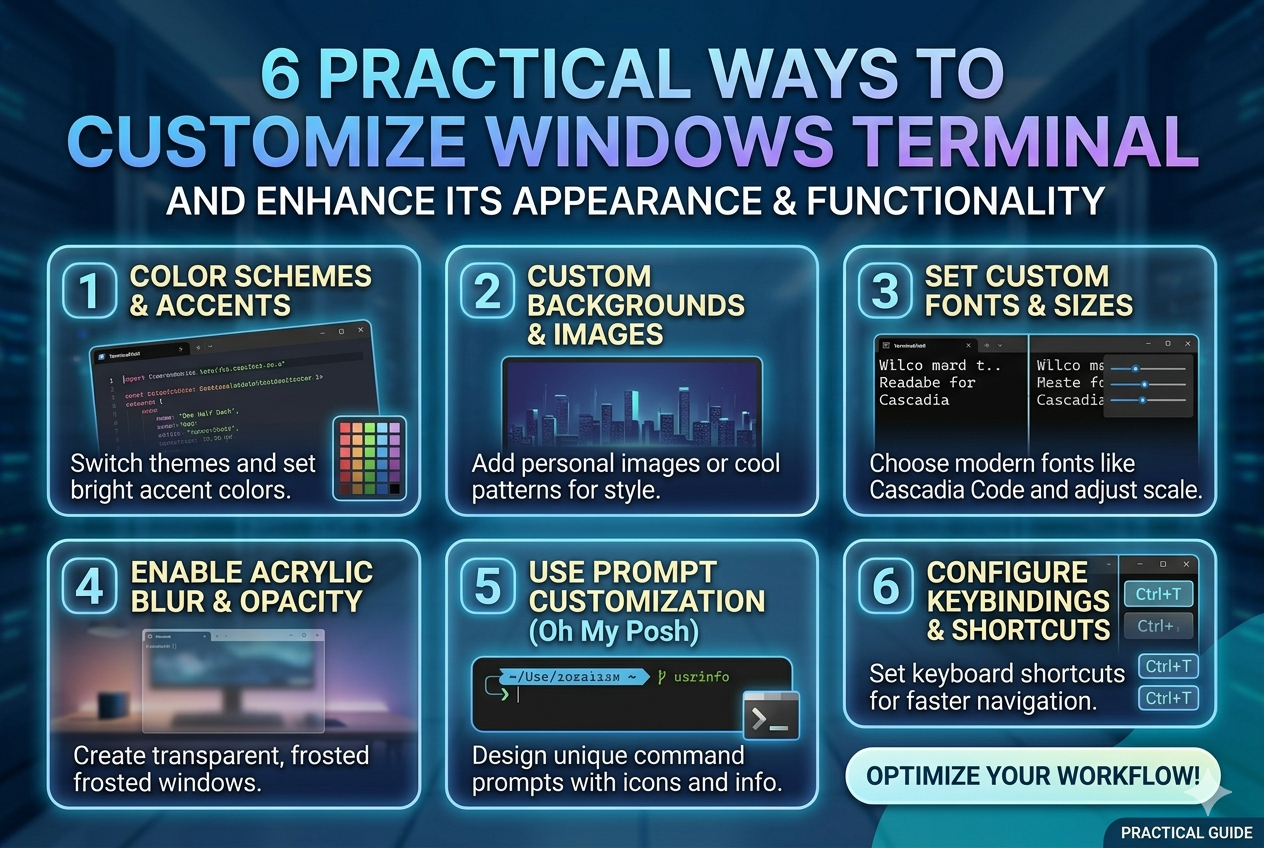
Windows Terminal offers a wide range of customization options that allow you to completely reshape its visual identity. One of the most impactful changes you can make is adjusting the color scheme. Instead of relying on the default appearance, you can choose from built-in themes or create your own combinations of background and foreground colors. This is not just about aesthetics; it also affects usability. A well-chosen color scheme can reduce eye strain, especially during long coding or system administration sessions. Dark themes are often preferred because they minimize glare, but lighter themes can be useful in bright environments.
Beyond simple color changes, you can fine-tune how different elements of the terminal behave visually. For example, error messages, directory paths, and command outputs can be distinguished more clearly by assigning them distinct colors. This makes reading logs and outputs significantly easier, especially when dealing with large amounts of data. Developers often prefer high-contrast themes because they make syntax and system messages stand out more clearly.
Another important aspect of appearance customization is transparency and background effects. You can adjust the opacity of the terminal window so that it blends subtly with your desktop wallpaper. This creates a modern, layered look that many users find visually appealing. Some users prefer a fully opaque interface for focus, while others enjoy a semi-transparent style that adds depth without reducing readability.
You can also modify cursor appearance, including its shape and color. A blinking block cursor, a vertical bar, or an underline each provides a different visual experience. Small changes like this can improve visibility and help you track input more easily, especially when working quickly or switching between multiple tasks.
Overall, customizing themes and color schemes is one of the simplest yet most powerful ways to make Windows Terminal feel personal, comfortable, and efficient. It transforms a basic command-line interface into a workspace that matches your style and enhances productivity.
Modify Fonts for Better Readability
Fonts play a critical role in how effectively you interact with the terminal. Since much of your work in Windows Terminal involves reading and writing text, choosing the right font can significantly improve clarity and reduce fatigue. By default, the terminal uses a standard monospaced font, but you are not limited to it. You can install and apply a wide variety of modern programming fonts designed specifically for readability.
Monospaced fonts ensure that every character occupies the same amount of space, which is essential for aligning code and interpreting structured output. However, not all monospaced fonts are equally readable. Some are designed with improved spacing, clearer distinction between similar characters, and enhanced visual balance. This becomes especially important when working with symbols such as zeros and the letter “O,” or ones and lowercase “l,” which can often be confused.
Font size adjustment is another important factor. Increasing the font size can make long sessions more comfortable, especially on high-resolution displays. On the other hand, reducing font size allows more information to fit on the screen, which can be useful when analyzing logs or comparing multiple outputs side by side. The ability to fine-tune this setting gives you flexibility depending on your task.
You can also adjust font weight and style. Some fonts offer bold variations that help highlight important information in command outputs. Italic styles may also be supported in certain configurations, although they are less commonly used in terminal environments. These subtle variations help improve visual hierarchy and make the interface easier to scan quickly.
Line spacing is another overlooked but valuable setting. Increasing spacing between lines can make dense output easier to read, while tighter spacing can help maximize screen usage. Finding the right balance depends on your personal preference and workflow demands.
Ultimately, customizing fonts in Windows Terminal is not just about appearance—it directly impacts efficiency, readability, and comfort during extended use.
Customize Startup Settings and Default Profile
Windows Terminal allows you to control exactly how it behaves when launched, giving you full authority over your starting environment. One of the most useful options is setting a default profile. This determines which shell opens automatically, such as PowerShell, Command Prompt, or other installed environments. Choosing the right default can save time and reduce repetitive switching between tools.
You can also define the starting directory. Instead of opening in a generic system path, the terminal can launch directly into a project folder, development workspace, or frequently used directory. This eliminates extra navigation steps and allows you to begin work immediately. For developers, this small adjustment can significantly streamline daily tasks.
Startup behavior can also be expanded to include multiple tabs or split panes that open automatically. For example, you might configure the terminal to open one tab for system monitoring, another for development work, and a third for file navigation. This setup helps create a structured workspace that is ready to use as soon as the terminal launches.
Another useful customization is window size and position. You can define how large the terminal window should be when it opens and where it should appear on your screen. This is particularly helpful if you use multiple monitors or prefer a consistent layout every time you start your system.
You can also control how tabs behave on startup, including whether they restore previous sessions or open fresh environments. Session restoration is useful when you want to continue ongoing work without losing context, while fresh sessions are better for clean tasks or debugging scenarios.
Overall, customizing startup settings turns Windows Terminal into a predictable and efficient workspace tailored to your routine rather than a generic tool that requires repeated manual setup.
Enhance Productivity with Keyboard Shortcuts
Keyboard shortcuts are one of the most powerful ways to improve speed and efficiency in Windows Terminal. Instead of navigating through menus or using a mouse, you can perform actions instantly through key combinations. This reduces interruptions and keeps your focus on the task at hand.
You can customize shortcuts for a wide range of actions, including opening new tabs, switching between profiles, and closing sessions. This is especially useful when working with multiple environments simultaneously. With properly configured shortcuts, switching from a development shell to a system monitoring session becomes almost instantaneous.
Pane management is another area where shortcuts provide major advantages. You can split the terminal window into multiple sections, allowing you to view and interact with different processes side by side. For example, you might run a server in one pane while monitoring logs in another. Keyboard shortcuts make it easy to create, resize, and navigate these panes without breaking your workflow.
Copying and pasting is also improved through customizable key bindings. Instead of relying on default behavior, you can assign shortcuts that match your habits or align with other tools you use regularly. This reduces friction when transferring commands or output between applications.
Advanced users often create highly personalized shortcut setups that match their exact workflow. This can include shortcuts for searching within the terminal, clearing the screen, or launching specific scripts. Once mastered, these shortcuts significantly reduce the time spent on repetitive tasks.
In essence, keyboard customization transforms Windows Terminal into a faster and more responsive environment where actions are executed with minimal effort.
Organize Work with Tabs and Split Panes
One of the most practical features of Windows Terminal is its ability to manage multiple sessions within a single window. Tabs allow you to separate different tasks, while split panes let you view multiple outputs simultaneously. This creates a highly organized and efficient workspace.
Tabs are useful when working on unrelated tasks. For example, you might have one tab dedicated to development, another for system monitoring, and another for network diagnostics. Switching between them is quick and keeps each environment isolated, reducing confusion and clutter.
Split panes take organization a step further by allowing multiple views within the same tab. This is especially useful when tasks are closely related. For instance, you might run a command in one pane while observing its output in another. This real-time comparison improves productivity and helps with debugging or system analysis.
You can also resize panes according to your needs. If one task requires more attention, you can allocate more screen space to it. This flexibility ensures that your workspace adapts to your workflow rather than forcing you into a fixed layout.
Another advantage of using tabs and panes is improved multitasking. Instead of opening multiple terminal windows across your desktop, everything is contained within a single interface. This reduces clutter and makes it easier to manage resources efficiently.
Over time, users often develop preferred layouts for specific tasks. These layouts can become part of a consistent workflow, making complex operations easier to manage and reducing setup time.
Add Visual Enhancements and Transparency Effects
Visual enhancements in Windows Terminal are not just decorative; they can improve focus and usability when configured thoughtfully. One of the most popular features is background transparency. By adjusting opacity, you can allow elements of your desktop to subtly show through the terminal window, creating a modern and visually appealing workspace.
Transparency can help reduce the harsh separation between applications, making multitasking feel more natural. However, it must be balanced carefully to ensure readability is not compromised. Too much transparency can make text difficult to read, while a moderate level provides aesthetic appeal without reducing clarity.
Acrylic effects add a blurred background layer that enhances visual depth. This creates a soft, polished look that many users find more comfortable than a flat interface. It also helps the terminal feel integrated with the overall operating system design.
Cursor customization also contributes to visual enhancement. Changing cursor shape, size, or blinking behavior can make input tracking easier and reduce strain during fast typing sessions. A well-visible cursor ensures you always know where your next input will appear.
You can also refine window styling elements such as borders, tab appearance, and padding. These small adjustments help create a cleaner interface that feels less cluttered and more professional.
When combined, these visual enhancements transform Windows Terminal from a simple command-line tool into a personalized, modern workspace that is both functional and visually comfortable for long-term use.
Custom Command Profiles for a More Organized Workflow
Windows Terminal becomes significantly more powerful when you structure it around custom command profiles instead of relying on a single default setup. Each profile can represent a completely different working environment, allowing you to separate tasks in a clean and logical way. For example, one profile can be dedicated to development work, another to system administration, and another to networking or testing environments. This separation helps reduce confusion and keeps your workflow more focused.
Each profile can be configured with its own shell, starting directory, and startup commands. This means you can launch directly into a project folder or automatically run scripts as soon as the terminal opens. Instead of repeatedly setting up your environment manually, everything is prepared in advance, saving time and effort.
Visual customization also plays an important role here. Profiles can have different colors, fonts, and backgrounds, making it easier to instantly recognize which environment you are working in. When multiple sessions are open, this visual distinction prevents mistakes and improves navigation speed.
Over time, building a well-structured set of profiles turns Windows Terminal into a personalized workspace where every task has its own optimized environment, making multitasking smoother and more efficient.
Custom Background Images for a More Personalized Experience
Adding background images to Windows Terminal is a simple yet effective way to make the interface feel more personal and visually engaging. Instead of a plain solid color, you can use wallpapers, soft gradients, or subtle textures that match your style. This creates a more comfortable and modern-looking workspace.
The key to using background images effectively is balance. The image should not interfere with readability, so lighter and less detailed visuals work best. Many users prefer blurred or low-contrast images because they add depth without distracting from the text. The goal is to enhance the environment while keeping the terminal functional and easy to read.
Transparency settings can be adjusted alongside background images to create the right visual effect. By fine-tuning opacity, you can ensure that text remains clear while still allowing the background to be visible. This combination creates a layered, polished appearance that feels more refined than a standard terminal interface.
Different profiles can also have different backgrounds, which helps visually separate environments. This makes it easier to recognize whether you are working in a development setup, testing environment, or system monitoring session.
Better Tab Behavior and Workspace Organization
Tabs in Windows Terminal are one of the most effective ways to manage multiple tasks at once, and customizing their behavior can greatly improve productivity. Instead of treating tabs as simple windows, you can turn them into an organized system for handling different workflows.
Each tab can be configured to open specific environments or tasks, allowing you to keep related work grouped together. Automatic naming based on directories or running processes makes it easier to identify what each tab is doing without needing to switch back and forth.
You can also arrange tabs in a way that matches your workflow. Reordering them helps prioritize important tasks, while grouping similar sessions together reduces clutter. This creates a cleaner and more intuitive workspace, especially when multiple processes are running at the same time.
Tabs can also be duplicated quickly, which is useful when testing commands or running parallel processes without disrupting your original session. This flexibility makes multitasking smoother and more efficient.
Integrating External Tools for Extended Functionality
Windows Terminal becomes even more powerful when combined with external tools and extensions. These integrations expand its capabilities beyond basic command execution and turn it into a central hub for development and system management.
Version control systems, package managers, and automation tools can be directly accessed from within the terminal. This eliminates the need to switch between different applications and keeps your workflow centralized. Everything you need becomes accessible from a single interface.
Shell enhancements such as command suggestions, syntax highlighting, and improved history navigation also contribute to a smoother experience. These features reduce typing effort and help prevent errors, especially when working with complex commands.
Automation is another major benefit of integration. Repetitive tasks such as file management, backups, or deployment processes can be executed through scripts, saving time and ensuring consistency across workflows.
With these enhancements in place, Windows Terminal evolves into a powerful productivity environment rather than just a command-line tool.
Fine-Tuning Input and Output Behavior for Better Control
Customizing how Windows Terminal handles input and output can greatly improve usability and efficiency. The way text is displayed, selected, and copied plays an important role in everyday usage, especially when working with large outputs or logs.
You can adjust how much previous output is stored through scrollback settings, which allows you to review long sessions when needed. A larger history is useful for debugging, while a smaller one helps keep the system lightweight and responsive.
Text selection behavior can also be improved for smoother copying and pasting. Clean selection ensures that copied text is properly formatted and easy to reuse in other applications, which is especially helpful when working with structured data or command outputs.
Input enhancements such as command history navigation and predictive suggestions reduce repetitive typing. Over time, this makes the terminal feel more responsive and aligned with your usage habits.
These small adjustments combine to create a more controlled and efficient interaction experience.
Improving Performance and System Responsiveness
Although Windows Terminal is already designed to be lightweight, performance can still be optimized further based on your usage needs. Reducing unnecessary visual effects, such as transparency or animations, can help improve responsiveness on lower-end systems or during heavy workloads.
Managing active sessions is also important for maintaining performance. Keeping only necessary tabs and panes open ensures that system resources are used efficiently. Closing unused sessions helps reduce memory usage and improves overall speed.
Startup behavior can be optimized as well. Avoiding unnecessary scripts or processes at launch reduces load time and makes the terminal ready for use more quickly. This is especially useful for users who frequently open and close the terminal throughout the day.
Efficient resource management ensures that even with multiple tasks running, Windows Terminal remains stable and responsive.
Enhancing Visual Experience with Subtle Interface Adjustments
Small visual adjustments can significantly improve the overall experience of using Windows Terminal. Elements such as cursor style, tab appearance, padding, and spacing all contribute to how comfortable the interface feels during long sessions.
A clearly visible cursor improves tracking during fast typing, while adjusted spacing between elements reduces visual clutter. These refinements make the interface easier on the eyes and help maintain focus over extended periods.
Window styling options also contribute to a cleaner and more modern look. Subtle changes to borders and layout spacing can make the terminal feel more polished without affecting functionality.
When combined, these visual improvements create a balanced environment that is both efficient and comfortable for daily use.
Creating a More Efficient Workflow with Session Management
Windows Terminal becomes far more powerful when you start managing sessions in a structured way rather than treating each window as an isolated tool. Session management allows you to keep track of ongoing work, switch between tasks smoothly, and maintain continuity across different workflows. Instead of repeatedly opening and closing environments, you can preserve active sessions and return to them whenever needed.
This is especially useful when working on long-running processes such as server monitoring, script execution, or development builds. By keeping sessions active in separate tabs or panes, you avoid losing progress and reduce the need to reinitialize tasks. It creates a stable working environment where everything remains available in one place.
Another important aspect of session management is restoring previous work. Windows Terminal can be configured to reopen the same tabs and layouts you were using before closing it. This means you can continue exactly where you left off without manually setting up your environment again. For users who switch between multiple projects daily, this feature saves a significant amount of time.
Session organization also improves mental clarity. When each task has its own dedicated space, it becomes easier to focus on individual processes without mixing outputs or commands. This separation helps reduce errors and keeps complex workflows easier to manage.
Improving Navigation with Smart Search and History Features
Efficient navigation is essential when working in a command-line environment, especially if you frequently execute similar commands. Windows Terminal provides powerful history and search features that allow you to quickly locate and reuse previous inputs without retyping them.
Command history keeps track of everything you have executed in a session, making it easy to recall earlier commands. Instead of scrolling endlessly or guessing syntax, you can quickly navigate through previous entries and reuse them instantly. This is particularly helpful when working with long or complex commands.
Search functionality further enhances navigation by allowing you to find specific text within the terminal output. Whether you are reviewing logs, debugging errors, or analyzing results, being able to quickly locate relevant information saves time and improves accuracy.
These features work together to reduce repetitive work and make the terminal feel more intelligent and responsive. Over time, they significantly speed up workflow execution, especially for users who rely heavily on command-line operations.
Enhancing Workflow with Automation and Scripting
One of the most powerful ways to extend Windows Terminal functionality is through automation and scripting. Instead of manually repeating tasks, you can create scripts that execute multiple commands automatically. This not only saves time but also reduces the chance of human error.
Automation can be used for a wide variety of tasks, such as setting up development environments, deploying applications, managing files, or running system diagnostics. By grouping commands into scripts, you can execute entire workflows with a single action.
This approach is especially useful for developers and system administrators who frequently perform repetitive operations. Instead of remembering long command sequences, everything can be stored in reusable scripts that are easy to run whenever needed.
Scripting also allows for consistency across tasks. When the same script is used repeatedly, you ensure that processes are executed in the same way every time, reducing inconsistencies and improving reliability.
Over time, automation transforms Windows Terminal into a powerful execution hub where complex tasks become simple and repeatable.
Customizing Accessibility Features for a Better Experience
Windows Terminal includes several accessibility-related options that can improve usability for different users. These features ensure that the terminal remains comfortable and functional regardless of visual preferences or system requirements.
One important accessibility option is text scaling. Adjusting font size and spacing can make content easier to read, especially on high-resolution displays or for users who prefer larger text. This reduces strain during long usage sessions.
High-contrast themes are another useful feature. They improve visibility by increasing the difference between background and text colors, making it easier to read output in different lighting conditions. This is particularly helpful in environments where screen visibility may vary.
Keyboard navigation support also improves accessibility by reducing reliance on mouse input. With properly configured shortcuts, nearly all terminal actions can be performed using the keyboard, which increases efficiency and accessibility for users who prefer or require keyboard-based interaction.
These features ensure that Windows Terminal remains adaptable and usable for a wide range of users, regardless of their working conditions or preferences.
Enhancing Multi-Tasking with Advanced Pane Control
Pane control is one of the most powerful features for multitasking in Windows Terminal. Instead of opening multiple separate windows, you can divide a single terminal into several active sections, each running different processes simultaneously.
This allows you to monitor outputs, run commands, and manage tasks side by side without switching contexts. For example, you might run a server in one pane while viewing logs in another and executing commands in a third. This level of multitasking is extremely useful for development, testing, and system management.
Panes can be resized and rearranged based on priority, giving you full control over how your workspace is structured. If one task requires more attention, you can expand its pane while minimizing others. This flexibility helps you focus on what matters most at any given time.
You can also close or duplicate panes easily, allowing you to adjust your workspace dynamically as tasks evolve. This adaptability makes it easier to handle complex workflows without feeling overwhelmed.
Over time, mastering pane control turns Windows Terminal into a highly efficient multi-tasking environment where multiple operations can be managed simultaneously.
Fine-Tuning Performance for Heavy Workloads
When working with multiple sessions, scripts, or monitoring tools, performance optimization becomes important to ensure smooth operation. Windows Terminal can be fine-tuned to handle heavier workloads without slowing down.
One way to improve performance is by limiting unnecessary visual effects. While features like transparency and animations enhance appearance, reducing them can improve responsiveness on lower-resource systems or during intensive tasks.
Another important factor is managing active processes. Keeping only essential tabs and panes open ensures that system resources are not wasted. Closing unused sessions helps maintain stability and improves overall speed.
Scrollback buffer settings also impact performance. A very large history can consume memory over time, so adjusting it based on your needs helps balance performance and usability. Users who do not need extensive history can reduce this value for better efficiency.
Optimizing startup behavior is equally important. Avoiding unnecessary startup scripts or heavy initialization tasks allows the terminal to launch faster and become ready for use quickly.
When combined, these adjustments ensure that Windows Terminal remains responsive and efficient even under demanding workloads.
Creating a More Comfortable Long-Term Usage Environment
Long-term use of Windows Terminal can become much more comfortable with small but thoughtful adjustments. These changes focus on reducing strain, improving clarity, and making the interface easier to work with over extended periods.
One important factor is visual balance. Choosing appropriate font sizes, spacing, and color schemes helps reduce eye fatigue during long sessions. A clean and consistent layout makes it easier to stay focused without distractions.
Cursor visibility also plays an important role. A well-defined cursor helps track input easily, especially when switching between fast commands or multiple panes. Adjusting its shape or brightness can improve usability.
Reducing clutter is another key aspect of comfort. Organizing tabs, limiting unnecessary windows, and maintaining a structured layout all contribute to a more peaceful working environment. When everything is in order, it becomes easier to concentrate on tasks without distraction.
Over time, these small improvements create a workspace that feels natural, efficient, and comfortable, allowing you to work for longer periods with less fatigue.
Streamlining Workflow with Custom Key Bindings
Windows Terminal becomes significantly faster and more efficient when you rely on custom key bindings instead of manual navigation. Key bindings allow you to trigger actions instantly, reducing dependency on menus and mouse clicks. This creates a smoother workflow where common tasks can be executed in a fraction of a second.
You can assign shortcuts for opening new tabs, switching between profiles, splitting panes, and closing sessions. Once these shortcuts are tailored to your habits, the terminal feels much more responsive and intuitive. Instead of searching for options, everything becomes a direct action.
Advanced users often customize bindings for specific workflows. For example, a shortcut can be set to open a development environment directly or launch a monitoring setup with predefined panes. This eliminates repetitive setup steps and ensures consistency every time you start working.
Key bindings also improve multitasking efficiency. Switching between active panes or tabs becomes effortless, allowing you to manage multiple processes without losing focus. This is especially useful when debugging, testing, or monitoring systems in real time.
Over time, well-designed shortcuts turn Windows Terminal into a highly responsive environment where speed and precision are naturally built into your workflow.
Building a Cleaner Workspace with Tab and Pane Discipline
As you work with multiple sessions, maintaining a clean workspace becomes essential for productivity. Without proper organization, tabs and panes can quickly become cluttered, making it harder to track what is happening in each session. Developing a structured approach helps avoid confusion and improves efficiency.
Grouping related tasks within the same window allows you to maintain better control over your workflow. Instead of scattering sessions across multiple windows, keeping them organized in a single structured layout makes navigation easier.
Closing unused sessions is equally important. Leaving inactive tabs open can lead to unnecessary clutter and reduced focus. A clean workspace ensures that only relevant processes remain visible, helping you concentrate on active tasks.
Pane discipline also plays a role in maintaining clarity. While splitting panes is useful, overusing them can make the interface crowded. Using them strategically for closely related tasks ensures that the layout remains functional rather than overwhelming.
A well-organized workspace improves not only efficiency but also mental clarity, making it easier to focus on complex operations without distraction.
Enhancing Visual Clarity with Interface Refinements
Small visual refinements can dramatically improve the usability of Windows Terminal. These adjustments focus on making text easier to read, reducing visual strain, and improving overall interface balance.
Adjusting spacing between elements helps reduce clutter and makes output easier to scan. Proper spacing ensures that commands and results are clearly separated, improving readability during long sessions.
Cursor customization also contributes to clarity. A clearly visible cursor makes it easier to track input, especially when working quickly or switching between different panes. Subtle changes in cursor style can significantly improve usability.
Color balance is another important factor. Choosing consistent and readable color schemes helps differentiate between output types such as errors, warnings, and standard logs. This makes it easier to interpret information at a glance.
When combined, these refinements create a visually balanced environment that supports both productivity and long-term comfort.
Leveraging Profiles for Task-Based Environments
Profiles in Windows Terminal allow you to create dedicated environments for different types of work. Instead of using a single general setup, you can design multiple configurations that match specific tasks or workflows.
Each profile can be customized with its own shell, appearance, and startup behavior. This means you can switch between environments that are optimized for development, system administration, testing, or scripting with ease.
Profiles also help reduce setup time. Instead of manually configuring tools and directories each time you start a task, everything is preconfigured and ready to use. This makes your workflow more efficient and predictable.
Visual customization adds another layer of organization. Different colors or backgrounds for each profile make it easy to identify your current environment at a glance. This reduces the chance of mistakes when working with multiple sessions.
Over time, profiles become a central part of workflow management, allowing you to move between tasks seamlessly without losing context.
Improving Stability During Intensive Usage
When running multiple processes or handling heavy workloads, maintaining stability becomes important. Windows Terminal can be optimized to handle intensive usage more effectively by managing system resources carefully.
Limiting unnecessary active sessions helps reduce memory usage and ensures smoother performance. Keeping only essential tabs open allows the system to allocate resources more efficiently.
Visual effects such as transparency and animations can be reduced when performance is a priority. While these features enhance appearance, minimizing them during heavy workloads improves responsiveness.
Managing scrollback history is also important. Large amounts of stored output can consume memory over time, so adjusting history limits helps maintain stability without sacrificing usability.
Proper resource management ensures that Windows Terminal remains reliable even under demanding conditions, such as running multiple scripts or monitoring real-time systems.
Creating a More Fluid Multitasking Experience
Multitasking is one of the strongest capabilities of Windows Terminal, and refining how you use it can greatly improve productivity. The combination of tabs, panes, and profiles allows you to handle multiple tasks within a single interface.
A fluid multitasking setup relies on logical organization. Each tab or pane should serve a clear purpose, reducing confusion when switching between tasks. Keeping related processes grouped together ensures that your workflow remains structured.
Quick navigation between active sessions is also important. Being able to move instantly between tasks without losing context improves efficiency and reduces interruptions.
Duplicating sessions can also support multitasking. When testing or comparing outputs, having identical environments running in parallel allows for better analysis without disrupting the original setup.
When used effectively, multitasking tools transform Windows Terminal into a highly flexible workspace capable of handling complex operations smoothly.
Creating a Long-Term Comfortable Working Environment
Sustained usage of Windows Terminal becomes more comfortable when the environment is carefully adjusted to reduce strain and improve usability. Small refinements in appearance and behavior can have a significant impact over time.
Readable fonts, appropriate spacing, and balanced color schemes all contribute to reduced eye fatigue. These elements make long sessions easier to manage without discomfort.
Consistent layout design also plays a role in comfort. When the terminal behaves predictably and maintains an organized structure, it becomes easier to focus on tasks without unnecessary distractions.
Cursor visibility and responsiveness further improve interaction comfort, ensuring that input tracking remains clear even during fast operations.
By combining these adjustments, Windows Terminal becomes a stable, comfortable, and efficient workspace that supports long-term productivity without causing fatigue or clutter.
Conclusion
Windows Terminal becomes far more than a simple command-line tool when it is properly customized and refined. With thoughtful adjustments to appearance, behavior, and workflow structure, it can be transformed into a highly efficient and visually comfortable environment tailored to individual needs.
From themes, fonts, and transparency settings to advanced features like profiles, panes, and automation, each customization option contributes to a smoother and more productive experience. Small refinements such as keyboard shortcuts, tab organization, and input behavior improvements help reduce repetitive effort and make everyday tasks faster and more intuitive.
Over time, these enhancements work together to create a workspace that feels natural to use, supports multitasking, and adapts to different types of work without unnecessary friction. Whether used for development, system administration, or general computing tasks, a well-configured Windows Terminal provides both efficiency and comfort in equal measure.