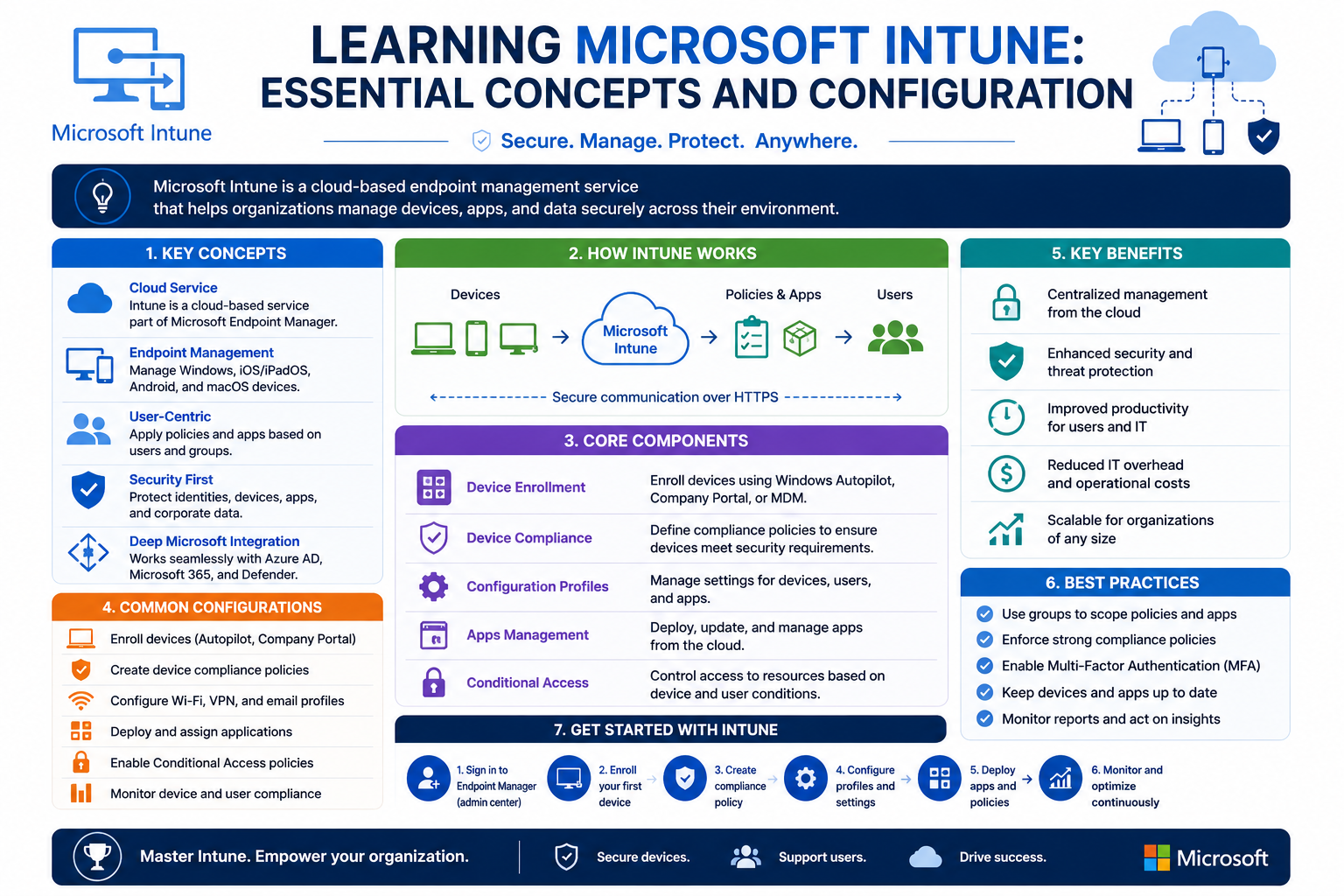
Modern organizations rely on technology more than ever before. Employees use laptops, smartphones, tablets, and desktops to access business applications, communicate with clients, and collaborate with coworkers. Managing all these devices manually has become increasingly difficult for IT departments, especially as remote and hybrid work environments continue to grow. Organizations need tools that allow them to secure devices, deploy applications, monitor compliance, and support users from a centralized platform. Microsoft Intune was developed to address these exact challenges.
Microsoft Intune is a cloud-based endpoint management solution that helps businesses manage devices and applications from anywhere. It allows administrators to configure devices, enforce security policies, deploy applications, and protect company data without needing direct physical access to every system. Because it is cloud-based, administrators can manage endpoints through a web browser while users continue working from nearly any location.
Microsoft Intune supports a wide range of operating systems, including Windows, macOS, Android, and iOS, making it easier for organizations to manage diverse device environments through a centralized platform. Whether employees work with company-issued laptops, tablets, or personal smartphones, Intune provides tools for enforcing security policies, managing devices, and controlling access to business resources. Professionals working with Microsoft cloud technologies can also benefit from related certifications such as az-104, which can strengthen their understanding of Azure administration and complement broader device-management skills.
One of the reasons Intune has become popular is its integration with the Microsoft ecosystem. Organizations already using Microsoft 365, Azure Active Directory, Microsoft Defender, or Microsoft Endpoint Manager often find Intune easier to implement because it works naturally alongside these services. This integration creates a unified environment where identity management, device security, and application access all work together.
Intune also simplifies onboarding for new employees. Instead of requiring IT staff to manually configure every device, administrators can automate the setup process. Once a user signs into a device with their company account, Intune can automatically install applications, configure settings, connect email accounts, and apply security policies. This dramatically reduces setup time while improving consistency across the organization.
As cybersecurity threats continue increasing, organizations must ensure devices remain secure even when employees work remotely. Intune helps enforce security standards by requiring encryption, enforcing password rules, enabling antivirus protection, and ensuring devices remain updated. Devices that fail to meet compliance requirements can automatically lose access to company resources until the issues are corrected.
The platform also supports mobile device management for organizations that allow employees to use personal devices for work purposes. Administrators can protect business data without interfering with personal content, creating a balance between security and user privacy.
Learning Microsoft Intune requires both technical understanding and hands-on experience. IT professionals who understand endpoint management, compliance policies, conditional access, and cloud-based security tools are increasingly valuable in modern organizations. As businesses continue adopting cloud-first strategies, Intune skills are becoming more important for system administrators, security professionals, and cloud engineers.
Understanding the Core Functions of Intune
Microsoft Intune combines several major functions into a single management platform. These functions include device management, application management, security enforcement, compliance monitoring, and access control. Together, these features allow organizations to create secure and manageable IT environments.
Device management is one of Intune’s primary capabilities. Administrators can enroll devices into the platform and manage them remotely. Once devices are enrolled, administrators gain visibility into hardware details, operating system versions, installed applications, and compliance status. Policies can then be applied to ensure devices follow company standards.
Application management is another critical function. Organizations can deploy software remotely to groups of users or devices. Applications can be installed automatically, made available through a company portal, or updated remotely. This simplifies software distribution while ensuring employees have access to required tools.
Security management is deeply integrated into Intune. Administrators can configure password requirements, enable encryption, require antivirus protection, and enforce update policies. Security policies help protect devices against unauthorized access, malware, and data loss.
Compliance monitoring ensures devices meet organizational and regulatory requirements. Administrators can define compliance rules such as minimum operating system versions, encryption status, or antivirus health checks. Devices that fail compliance checks can be blocked from accessing business resources until problems are resolved.
Conditional access adds another layer of protection. Organizations can create rules that evaluate users, devices, locations, and risk levels before granting access to applications or data. For example, users signing in from unfamiliar locations may be required to complete multi-factor authentication before accessing sensitive systems.
Intune also supports remote actions that help administrators respond quickly to problems. Devices can be restarted, locked, wiped, or reset remotely. These capabilities become especially important when devices are lost, stolen, or compromised.
Another important function is reporting and monitoring. Administrators can view compliance reports, deployment status, security alerts, and inventory information directly from the management portal. This visibility helps IT teams identify issues quickly and maintain overall operational health.
Automation is one of Intune’s biggest advantages. Instead of manually repeating the same tasks for every device, administrators can create policies and configurations that apply automatically. This reduces administrative overhead while improving consistency across the environment.
The ability to manage both company-owned and personally owned devices gives organizations greater flexibility. Many businesses operate under bring-your-own-device policies where employees use personal phones or tablets for work purposes. Intune helps protect company data while respecting user privacy.
These core capabilities make Intune a powerful platform for organizations looking to modernize endpoint management and improve security without increasing administrative complexity.
Why Organizations Are Adopting Cloud-Based Device Management
Traditional device management methods often relied heavily on on-premises infrastructure and manual configuration processes. Administrators needed direct access to devices, internal servers, and corporate networks to deploy software and manage systems effectively. As remote work became more common, these traditional methods became less practical.
Cloud-based management platforms such as Microsoft Intune help organizations overcome many of these challenges by allowing devices to receive policies, security updates, and applications over the internet. Employees can access managed resources without relying on constant VPN connections or being physically present in an office. This approach makes it easier to support distributed teams while maintaining consistent security and management standards. For IT professionals working toward broader cloud architecture expertise, preparation for the az-305 exam can also complement their understanding of modern cloud-based management environments.
One major advantage of cloud-based management is scalability. Organizations can manage a small number of devices or tens of thousands of endpoints using the same platform. As businesses grow, Intune can expand alongside them without requiring major infrastructure changes.
Remote management capabilities also improve operational efficiency. IT administrators can troubleshoot problems, deploy applications, and enforce policies without requiring users to visit the office. This reduces downtime and improves user support experiences.
Cloud management platforms also simplify software updates. Administrators can enforce update schedules and ensure devices receive critical security patches consistently. This reduces vulnerabilities caused by outdated operating systems or applications.
Security improvements are another key reason organizations adopt cloud-based management solutions. Cyber threats continue evolving rapidly, and organizations need centralized tools capable of enforcing consistent protection standards across all devices.
Intune supports zero trust security models by continuously evaluating users and devices before granting access to resources. Instead of assuming trust based on network location, every access request is verified according to compliance and risk status.
The flexibility to support hybrid work environments has become essential for modern organizations. Employees now expect to work from multiple locations using different devices. Intune helps organizations support this flexibility while maintaining security and operational control.
Businesses also benefit from reduced infrastructure requirements. Traditional management systems often required extensive server infrastructure, maintenance, and networking configurations. Cloud-based solutions reduce much of this overhead because Microsoft manages the backend infrastructure.
Another major benefit is integration with identity management systems. Intune works closely with Azure Active Directory, allowing organizations to combine user authentication, device compliance, and access control into a unified security framework.
Organizations in regulated industries also appreciate the compliance and reporting capabilities available through cloud-based management platforms. Administrators can generate reports, monitor device status, and demonstrate compliance with industry standards more efficiently.
Automation capabilities further reduce repetitive manual tasks. Policies, applications, and configurations can deploy automatically based on user groups, device types, or organizational roles. This allows IT teams to focus more on strategic initiatives rather than repetitive operational work.
The shift toward cloud-based management reflects broader changes in modern business operations. Organizations require more flexibility, stronger security, and better support for remote work. Platforms like Intune provide the tools needed to meet these evolving demands.
Preparing Your Environment for Intune Deployment
Before deploying Microsoft Intune, organizations should prepare their environments carefully. Proper planning reduces deployment issues, improves security, and creates a smoother experience for both administrators and users.
The first requirement is licensing. Organizations need subscriptions that include Intune capabilities. Several Microsoft licensing options provide access to Intune, including standalone Intune licenses, Microsoft 365 Business Premium, and enterprise-level E3 or E5 plans. Businesses should choose licensing options based on their size, security requirements, and management needs.
Administrators also need appropriate permissions to configure Intune. Global administrator access is often required during initial setup. However, organizations should avoid using shared administrator accounts whenever possible. Dedicated administrative accounts improve accountability and reduce risks associated with personnel changes.
Multi-factor authentication should be enabled immediately for all administrative accounts. Administrative accounts represent valuable targets for attackers because they provide access to sensitive management systems. Strong authentication significantly improves protection against unauthorized access attempts.
Organizations should also evaluate their identity management structure. Intune integrates closely with Azure Active Directory, so user accounts, groups, and organizational units should be reviewed before deployment begins.
Testing environments are extremely important during early learning and deployment phases. Administrators should create pilot groups containing test users and devices before expanding management to the broader organization. Pilot testing helps identify issues while minimizing disruption.
Choosing pilot users carefully can improve deployment success. Technically experienced employees who are willing to provide feedback often make ideal early adopters. Their input helps administrators refine configurations before wider rollouts occur.
Organizations should also define their device management goals clearly. Different departments may have different requirements based on the sensitivity of their work and the types of devices they use.
Different departments often have distinct security and access requirements. Sales teams may need secure mobile access to customer relationship management systems, while finance departments may require stronger data protection and stricter access controls. Remote employees may also depend on VPN configurations, multifactor authentication, and conditional access policies to maintain secure connections to company resources. Professionals preparing for identity and access management roles may encounter resources such as sc-300 dumps, although structured training and official study materials are generally more reliable for building practical skills.
Administrators should document the types of devices that will be managed, including company-owned laptops, personal smartphones, shared kiosks, and tablets. Understanding device diversity helps guide policy creation and enrollment strategies.
Application requirements should also be documented carefully. Organizations need to identify which applications are critical, which should install automatically, and which require restricted access.
Security requirements represent another major planning area. Administrators should determine password requirements, encryption standards, antivirus policies, update schedules, and compliance rules before deployment begins.
Organizations should also identify existing operational challenges that Intune can help solve. Common issues include inconsistent software deployment, slow onboarding processes, lack of visibility into remote devices, and manual security management tasks.
Focusing on these operational pain points helps organizations prioritize features that deliver immediate value. Early successes improve user acceptance and build confidence in the platform.
Communication planning is equally important. Employees should understand why device management changes are occurring, what benefits they provide, and what users can expect during enrollment processes.
Clear communication reduces confusion and resistance during deployment phases. Training materials, documentation, and support channels should be prepared before broader rollouts begin.
Administrators should also become familiar with the Intune management portal before production deployment. Understanding navigation, policy structures, reporting tools, and enrollment workflows improves confidence and reduces configuration errors.
Hands-on practice in a test environment remains one of the best ways to build experience. Administrators should experiment with policy creation, application deployment, compliance rules, and troubleshooting procedures before managing production systems.
Successful Intune deployments rely heavily on preparation, planning, and gradual implementation. Organizations that take time to understand their requirements and test configurations carefully often experience smoother deployments and better long-term results.
Accessing the Microsoft Intune Environment
After preparing the environment and understanding the basics of endpoint management, the next step is learning how to work inside the Microsoft Intune administration portal. Most daily management tasks take place within the Microsoft Intune admin center, which administrators access through a browser-based interface. This centralized dashboard gives IT teams visibility into devices, users, applications, security policies, and compliance reports.
When administrators first enter the portal, the interface may appear overwhelming because of the number of menus and configuration options available. However, the platform becomes easier to navigate once administrators understand its structure and workflows. Most routine tasks revolve around a few core areas, including devices, applications, endpoint security, compliance policies, and reporting.
The dashboard provides a summary of device health, enrollment status, compliance trends, and security alerts. Administrators can quickly identify issues such as non-compliant devices, failed deployments, or outdated operating systems. These insights help IT teams respond quickly before small issues become major operational or security problems.
One useful strategy for beginners is customizing the interface by pinning frequently used sections to favorites. Administrators who regularly manage applications or security policies can create a workflow that reduces navigation time and improves efficiency.
The portal also integrates closely with Microsoft Entra ID, formerly known as Azure Active Directory. User accounts, device identities, and group assignments all work together within the management ecosystem. This integration simplifies policy targeting and access control management.
Understanding the relationship between users, groups, and devices is essential for successful administration. Policies and applications are usually assigned to groups rather than individual users. This approach makes management easier because administrators can update group membership instead of modifying policies one user at a time.
Administrators should also become familiar with role-based access control. Larger organizations often divide responsibilities among different IT teams. Help desk technicians may handle device troubleshooting while security teams manage compliance policies and conditional access settings. Role-based permissions help organizations maintain security while allowing staff members to perform their required tasks.
Another important aspect of the portal is reporting and analytics. Administrators can generate reports showing device inventory, application installation status, compliance trends, and security posture. These reports help organizations maintain visibility across their environments and support auditing requirements.
As administrators gain experience, the portal becomes a powerful operational hub for modern endpoint management. Daily tasks such as onboarding users, deploying applications, reviewing security alerts, and troubleshooting enrollment problems can all be handled from a centralized location.
Understanding Device Enrollment in Intune
Device enrollment is the process that connects endpoints to Microsoft Intune so they can receive policies, applications, and management configurations. Without enrollment, Intune cannot manage devices effectively. Enrollment is one of the most important foundational steps in any Intune deployment.
Different operating systems support different enrollment methods. Organizations must choose enrollment strategies based on device ownership, user experience requirements, and security goals.
Windows devices often use automatic enrollment through Microsoft Entra ID integration. When users sign into a device using their organizational account, enrollment can occur automatically in the background. This creates a seamless experience because users do not need to perform complicated setup steps.
Automatic enrollment is especially useful for corporate-owned devices. Administrators can preconfigure settings so that new devices are ready for use immediately after sign-in. Applications, security policies, Wi-Fi settings, and compliance requirements apply automatically.
Windows Autopilot further enhances this process by allowing organizations to configure devices before users even receive them. Instead of IT teams manually preparing laptops, users can unbox devices, connect to the internet, and sign in with company credentials. Intune then completes the setup automatically.
macOS enrollment typically involves installing the Company Portal application. Users download the application, sign in with company credentials, and follow guided enrollment steps. Although the process is slightly more manual than Windows enrollment, it still provides centralized management capabilities.
Mobile device enrollment follows similar principles. Android and iOS users install the Intune Company Portal app from their app stores. After authentication, devices register with the organization and receive assigned configurations.
Organizations that allow personal devices often use lighter management approaches focused on protecting corporate data rather than controlling the entire device. This approach improves user privacy while still protecting sensitive business information.
Enrollment profiles help standardize onboarding processes. Administrators can configure enrollment restrictions, naming conventions, and setup requirements for different device types. These profiles simplify large-scale deployments and improve consistency.
Enrollment restrictions also improve security by controlling which devices can register with the organization. Administrators may block unsupported operating systems, restrict personal devices, or require minimum operating system versions before enrollment succeeds.
Testing enrollment workflows is extremely important. Administrators should always test new configurations on pilot devices before organization-wide deployment. Even small configuration mistakes can create large-scale support issues if not identified early.
Troubleshooting enrollment issues often involves reviewing logs, verifying user permissions, checking licensing assignments, and confirming network connectivity. Common problems include expired credentials, unsupported operating systems, or misconfigured enrollment settings.
Successful enrollment strategies focus on simplicity, security, and automation. The easier the process is for users, the more successful large-scale adoption becomes.
Creating and Managing Device Policies
Policies are one of the most powerful features within Microsoft Intune. Policies define how devices should behave, what security standards they must follow, and which settings users can modify. By using policies effectively, organizations can maintain consistency across thousands of devices.
Configuration policies allow administrators to control operating system settings remotely. These settings may include password requirements, Wi-Fi configurations, VPN settings, browser restrictions, desktop customization, and device functionality controls.
Password policies represent one of the most common security configurations. Organizations often require minimum password lengths, complexity standards, and automatic lockouts after repeated failed sign-in attempts. These settings reduce risks associated with weak passwords and unauthorized access.
Encryption policies are equally important. Administrators can require full-disk encryption on managed devices to protect sensitive data if hardware becomes lost or stolen. Encryption ensures data remains inaccessible without proper authentication credentials.
Update management policies help organizations maintain secure operating systems. Administrators can enforce update schedules, define maintenance windows, and delay certain updates for testing purposes. Keeping devices updated reduces exposure to known vulnerabilities.
Device restriction policies provide additional control over hardware and software features. Organizations may disable USB storage on sensitive systems, block unauthorized applications, or restrict specific operating system functions.
Organizations often create separate policies for different departments or user groups. Finance teams may require stricter controls than marketing teams, while executives may need different mobility settings compared to office-based staff.
One common mistake inexperienced administrators make is deploying too many policies simultaneously. Multiple overlapping policies can create conflicts that are difficult to troubleshoot. A better approach involves implementing policies gradually while testing carefully between changes.
Pilot groups are especially valuable during policy development. Administrators should apply new policies to test users before wider deployment. This approach helps identify compatibility problems, unexpected behavior, or user experience issues early.
Policy assignments usually rely on group memberships. Administrators create groups based on departments, locations, device types, or job roles. Policies then apply automatically to all members of those groups.
Dynamic groups can simplify management further by updating membership automatically based on predefined criteria. For example, all Windows 11 devices could automatically join a specific management group without manual administrator involvement.
Monitoring policy deployment status is another important responsibility. Intune provides reporting tools that show whether devices successfully received configurations or encountered errors. Administrators should review these reports regularly to identify issues quickly.
Documentation remains critical throughout policy management processes. Recording policy purposes, configurations, testing results, and deployment timelines helps organizations maintain clarity as environments grow more complex.
Effective policy management improves security, simplifies operations, and creates a more predictable user experience across the organization.
Deploying Applications Through Intune
Application deployment is one of the most visible and valuable capabilities within Microsoft Intune. Employees depend on software tools to perform their jobs effectively, and organizations need reliable methods to distribute applications securely and efficiently.
Intune allows administrators to deploy applications remotely to managed devices. Applications can install automatically, appear in a company portal for optional installation, or update silently in the background.
Microsoft 365 applications are among the easiest to deploy because Intune includes built-in integration for these products. Administrators can configure installation options, choose application components, and assign deployments to users or devices.
Line-of-business applications can also be deployed through Intune. These may include accounting systems, industry-specific software, productivity tools, or internally developed applications. Administrators upload installation packages and configure deployment settings directly through the management portal.
Windows applications often use the IntuneWin packaging format. Administrators package installation files using Microsoft’s content preparation tool before uploading them to Intune. Once packaged, applications can deploy remotely to target devices.
macOS applications support similar deployment methods using appropriate package formats. Mobile applications for Android and iOS can also be distributed through public app stores or managed application catalogs.
Application assignments determine how software becomes available to users. Required applications install automatically, while available applications appear in the Company Portal for users to install voluntarily.
Organizations should prioritize testing before large-scale deployment. Administrators should verify installation behavior, licensing functionality, application compatibility, and performance on pilot devices.
Application dependencies also require attention. Some applications rely on specific frameworks, libraries, or operating system versions to function correctly. Missing dependencies can cause deployment failures or application instability.
Application supersedence helps organizations manage software upgrades efficiently. Older versions can automatically uninstall when newer versions deploy, reducing confusion and improving security.
Intune also supports uninstall assignments. Administrators can remove outdated or unauthorized applications remotely when necessary.
Mobile application management introduces additional capabilities focused on protecting business data. Organizations can apply app protection policies that restrict copy-and-paste functionality, require encryption, or prevent screenshots within managed applications.
These protections become especially important on personally owned devices where organizations need to protect corporate information without controlling the entire device.
Application monitoring tools help administrators track installation status and troubleshoot deployment problems. Reports show which devices successfully installed software and which encountered errors.
Bandwidth optimization is another important consideration for large deployments. Administrators should plan software rollouts carefully to avoid overwhelming network resources, especially in remote environments with limited connectivity.
Successful application management improves productivity while reducing support workloads. Employees receive required tools faster, updates occur more consistently, and organizations maintain better control over software environments.
Managing Compliance Policies and Security Standards
Compliance policies help organizations ensure managed devices meet security and operational requirements before accessing company resources. These policies represent a core component of modern endpoint security strategies.
Compliance settings evaluate devices against predefined rules such as encryption status, operating system version, antivirus health, password configurations, and update status. Devices failing these checks may become non-compliant.
Organizations often use compliance policies alongside conditional access rules. Conditional access evaluates compliance status before granting access to applications or services. Non-compliant devices may lose access until administrators or users resolve identified issues.
Operating system compliance settings help organizations ensure devices remain updated and supported. Administrators can define minimum operating system versions and block outdated systems that may contain unpatched vulnerabilities.
Password compliance settings enforce authentication standards such as minimum complexity requirements, expiration intervals, and inactivity lock timers.
Encryption compliance checks verify whether devices protect stored data appropriately. Devices without encryption may fail compliance evaluations automatically.
Antivirus monitoring adds another layer of protection. Compliance policies can verify whether approved security software is active and updated before allowing access to corporate resources.
Jailbroken or rooted mobile devices often represent elevated security risks. Compliance policies can detect these modifications and block affected devices from accessing organizational data.
Compliance notifications help users resolve issues independently. Intune can inform users when devices become non-compliant and provide instructions for corrective actions.
Administrators should avoid creating unnecessarily strict compliance policies initially. Excessive restrictions can frustrate users and create operational disruptions. Gradual implementation allows organizations to balance security with usability.
Compliance reporting tools provide valuable visibility into organizational security posture. Administrators can identify trends, monitor recurring issues, and prioritize remediation efforts more effectively.
Regulated industries often rely heavily on compliance reporting for auditing purposes. Detailed records help demonstrate adherence to industry standards and security requirements.
Organizations should review compliance policies regularly as threats evolve and business requirements change. Policies that were appropriate previously may require adjustments over time.
User education also plays an important role in compliance management. Employees should understand why security requirements exist and how compliance protects both the organization and their own devices.
Well-designed compliance frameworks strengthen organizational security while supporting efficient operations and regulatory requirements.
Building a Strong Testing and Deployment Strategy
Successful Intune environments rely heavily on structured testing and phased deployments. Attempting organization-wide rollouts without adequate testing often creates avoidable problems and user frustration.
Pilot groups are one of the most effective deployment strategies. Administrators should select small groups of technically confident users willing to provide feedback during testing phases.
Every new application, policy, or configuration should pass through pilot testing before broader deployment. This process helps identify compatibility problems, policy conflicts, and unexpected behavior early.
Testing environments should include multiple device types whenever possible. Windows laptops, macOS systems, Android devices, and iPhones may behave differently under identical configurations.
Documenting testing outcomes is equally important. Administrators should record successful configurations, encountered problems, troubleshooting steps, and lessons learned during deployment phases.
Change management processes improve stability further. Organizations should schedule major deployments carefully, communicate changes clearly, and provide support resources for affected users.
Rollback plans are another critical component of deployment planning. Administrators should know how to remove problematic applications or revert harmful policy changes quickly if necessary.
Monitoring deployment progress closely helps identify issues before they spread widely. Intune reporting tools provide valuable insights into installation failures, enrollment problems, and compliance trends.
Organizations that prioritize testing and gradual deployment often experience smoother implementations, better user adoption, and fewer operational disruptions during Intune rollouts.
Expanding Beyond Basic Intune Administration
Once administrators become comfortable with basic enrollment, policy creation, and application deployment, the next stage is learning how to use Microsoft Intune’s more advanced capabilities. Many organizations initially implement Intune only for simple device management tasks, but the platform contains powerful security, automation, and integration features that can dramatically improve operational efficiency and endpoint protection.
Advanced Intune administration focuses on building secure, scalable, and automated environments. Organizations that invest time in learning these capabilities often reduce manual workloads, improve compliance, strengthen security, and provide better experiences for users.
One of the biggest advantages of Intune is its ability to evolve alongside organizational needs. Small businesses may start with simple mobile device management and later expand into advanced conditional access, zero trust architecture, and automated security responses. Larger enterprises often use Intune as a central component of their cloud security strategy.
Administrators should approach advanced features gradually. Attempting to implement every available feature at once can create unnecessary complexity. Instead, organizations should focus on solving specific operational or security challenges one step at a time.
Hands-on testing continues to play a major role during advanced learning phases. Features such as conditional access, compliance automation, security integrations, and endpoint analytics should first be tested in controlled environments before broader deployment.
Organizations also benefit from building internal standards and best practices as their Intune environments mature. Consistent naming conventions, documentation procedures, group structures, and deployment workflows improve long-term manageability.
Another important consideration is user experience. Strong security controls are essential, but organizations must also ensure employees can work efficiently. Successful administrators learn how to balance security requirements with productivity needs.
Intune’s advanced capabilities support this balance by allowing organizations to apply different controls based on user roles, device types, risk levels, and locations. This flexibility helps organizations strengthen security without creating excessive friction for trusted users.
The transition from basic administration to advanced endpoint management often marks a significant improvement in organizational maturity. IT teams gain better visibility, stronger control, and more efficient operational processes while users benefit from smoother onboarding and more reliable access to business resources.
Implementing Conditional Access Policies
Conditional access is one of the most important security features organizations can implement within the Microsoft ecosystem. Instead of treating every login attempt equally, conditional access evaluates various factors before granting access to applications and resources.
These factors may include device compliance status, user identity, geographic location, sign-in risk, application sensitivity, and authentication methods. By analyzing these conditions dynamically, organizations can create smarter access control policies that improve both security and usability.
Traditional security models often assumed that users inside the corporate network were trustworthy. Modern environments no longer operate this way because employees work remotely and access resources from multiple devices and locations. Conditional access helps organizations adapt to these modern realities.
One common use case involves requiring multi-factor authentication for users signing in from unfamiliar locations. If an employee normally works in one country but suddenly attempts to access systems from another region, conditional access policies can require additional verification before granting access.
Organizations can also block sign-ins from countries where they do not conduct business. This reduces exposure to unauthorized access attempts originating from high-risk regions.
Device compliance integration adds another layer of security. Conditional access can require devices to meet compliance standards before users gain access to company resources. Devices lacking encryption, antivirus protection, or recent updates may lose access until administrators resolve the issues.
Application sensitivity is another important consideration. Organizations may require stricter authentication controls for financial systems, human resources applications, or executive communications platforms compared to less sensitive services.
Conditional access policies should always be tested carefully before full deployment. Poorly configured policies can accidentally lock users out of important systems. Administrators should begin with small pilot groups and monitor results closely before expanding enforcement.
Report-only mode is especially useful during testing phases. This feature allows administrators to observe how policies would affect users without actively blocking access. It helps organizations identify unintended consequences before enforcement begins.
Another important practice involves maintaining emergency access accounts that remain excluded from restrictive policies. These accounts help administrators recover access if policy misconfigurations occur.
Organizations should also avoid creating unnecessary complexity. Too many overlapping conditional access rules can make troubleshooting difficult and increase administrative confusion. Clear policy structures improve long-term manageability.
As organizations become more comfortable with conditional access, they often expand into risk-based authentication strategies. Microsoft security services can analyze user behavior, sign-in patterns, and threat intelligence to identify suspicious activities automatically.
This adaptive approach strengthens security while minimizing disruption for trusted users operating under normal conditions.
Building a Zero Trust Security Model
Zero trust security has become one of the most important concepts in modern cybersecurity. The core principle behind zero trust is simple: never trust automatically and always verify continuously.
Instead of assuming users or devices are safe because they exist within a company network, zero trust evaluates every access request based on identity, device health, risk signals, and contextual information.
Microsoft Intune plays a major role in helping organizations implement zero trust strategies. By combining device management, compliance policies, identity integration, and conditional access, organizations can create layered security frameworks that reduce exposure to modern threats.
Device health verification is one of the foundational components of zero trust. Before granting access to business resources, organizations can confirm whether devices meet security standards such as encryption, antivirus protection, operating system updates, and compliance requirements.
User identity verification is equally important. Multi-factor authentication strengthens protection by requiring additional verification beyond passwords alone. Even if attackers compromise user credentials, additional authentication layers help prevent unauthorized access.
Application protection policies also contribute to zero trust principles by protecting business data at the application level. Organizations can restrict copying, printing, screen captures, and data sharing between managed and unmanaged applications.
Least privilege access is another core concept within zero trust security. Users should receive only the permissions necessary to perform their responsibilities. Excessive privileges increase risks if accounts become compromised.
Continuous monitoring further strengthens zero trust environments. Administrators should monitor device health, authentication activity, compliance status, and security alerts regularly. Rapid detection helps organizations respond quickly when suspicious behavior appears.
Automation enhances zero trust strategies by enabling immediate responses to detected risks. For example, compromised devices can automatically lose access to sensitive resources until remediation occurs.
Organizations implementing zero trust should also focus heavily on user education. Employees need to understand why security controls exist and how they help protect organizational data.
Zero trust implementation is not a one-time project. It represents an ongoing security philosophy that evolves as threats, technologies, and organizational requirements change over time.
Intune provides many of the tools organizations need to begin building practical zero trust environments without requiring completely new infrastructure.
Using Intune with Microsoft Defender and Security Tools
One of Intune’s greatest strengths is its ability to integrate with other Microsoft security solutions. These integrations allow organizations to create more advanced and intelligent security ecosystems.
Microsoft Defender for Endpoint is one of the most important integrations available. Defender provides advanced threat detection, vulnerability management, endpoint monitoring, and automated investigation capabilities.
When integrated with Intune, administrators gain deeper visibility into device security status. Threat intelligence from Defender can influence compliance evaluations and conditional access decisions automatically.
For example, devices identified as compromised or high-risk by Defender may lose access to corporate resources immediately until security teams investigate the issue.
This integration improves incident response times because organizations no longer rely entirely on manual intervention. Automated responses reduce the amount of time attackers have to move within environments.
Microsoft Entra ID Identity Protection adds another layer of intelligence by analyzing user sign-in behavior. Suspicious authentication patterns, impossible travel scenarios, leaked credentials, or abnormal activity can trigger additional authentication requirements or access restrictions automatically.
Cloud App Security integrations provide better visibility into cloud application usage across organizations. Administrators can identify unsanctioned applications, monitor risky behaviors, and apply data protection controls more effectively.
These integrations help organizations address shadow IT challenges where employees use unauthorized applications without IT approval.
Security integrations also improve reporting and analytics capabilities. Administrators can correlate device health, authentication risks, threat detections, and compliance data within a unified ecosystem.
Organizations that combine Intune with broader Microsoft security tools often achieve stronger visibility and faster response capabilities compared to isolated management systems.
Automation remains a key benefit of integrated security environments. Instead of relying entirely on manual monitoring, organizations can create workflows that respond automatically when risks appear.
For example, compromised devices can trigger alerts, revoke access, require password resets, or initiate remote wipe actions automatically depending on organizational policies.
As cyber threats continue evolving, integrated security ecosystems become increasingly valuable for maintaining operational resilience and protecting sensitive information.
Automating Administrative Tasks with Intune
Automation is one of the most valuable long-term benefits organizations gain from Microsoft Intune. Repetitive manual tasks consume significant time for IT teams and often introduce inconsistencies or human error.
By automating common administrative processes, organizations improve efficiency while reducing operational workloads.
Automated device enrollment is one of the earliest examples administrators encounter. Devices can register automatically when users sign in with organizational accounts, reducing onboarding effort significantly.
Application deployment automation ensures users receive required software without manual installations. Administrators can assign applications to groups and allow Intune to handle distribution automatically.
Update management automation improves security by ensuring operating systems and applications receive patches consistently. Organizations no longer depend entirely on users to install updates manually.
Compliance enforcement automation further strengthens operational consistency. Devices that fall out of compliance can automatically lose access until remediation occurs.
Automation also improves user onboarding experiences. New employees can receive devices that configure themselves automatically with applications, email settings, VPN profiles, and security policies immediately after sign-in.
Dynamic group memberships simplify administrative management further. Devices and users can join groups automatically based on predefined criteria such as department, operating system, location, or device ownership type.
Scripting capabilities provide even greater flexibility. Administrators can use PowerShell scripts to automate advanced configurations, perform maintenance tasks, and customize deployment workflows.
Reporting automation helps organizations maintain visibility without requiring constant manual oversight. Scheduled reports can provide insights into compliance status, deployment progress, and security posture regularly.
Automation should always be implemented carefully and tested thoroughly. Poorly designed automation workflows can create large-scale issues quickly if problems go undetected.
Organizations should document automation processes clearly and maintain rollback procedures whenever possible. Visibility into automated actions helps administrators troubleshoot problems more effectively.
As environments grow larger, automation becomes increasingly important for maintaining scalability and operational efficiency.
Monitoring, Reporting, and Troubleshooting in Intune
Successful endpoint management requires continuous monitoring and effective troubleshooting processes. Intune provides several reporting and analytics tools that help administrators maintain visibility across managed environments.
Device inventory reports show hardware details, operating system versions, ownership status, and compliance information. These reports help organizations track assets and identify outdated systems.
Compliance reports provide insights into policy adherence across the environment. Administrators can identify devices failing security requirements and prioritize remediation efforts.
Application deployment reports help track installation success rates and identify failed deployments. These insights improve software management reliability and reduce support workloads.
Endpoint analytics provide deeper visibility into user experiences and device performance. Organizations can monitor startup times, application reliability, and hardware health trends.
Security reporting becomes increasingly important as environments grow. Administrators should monitor threat alerts, authentication risks, compliance failures, and unusual activities regularly.
Troubleshooting skills are equally important for successful administration. Common Intune issues often involve enrollment failures, policy conflicts, authentication problems, licensing issues, or network connectivity limitations.
Careful testing remains one of the best methods for reducing troubleshooting complexity. Administrators should validate configurations in pilot environments before large-scale deployment.
Documentation also improves troubleshooting efficiency significantly. Recording configurations, policy assignments, deployment timelines, and error resolutions helps administrators resolve recurring issues faster.
User communication is another critical troubleshooting factor. Employees should know how to report issues, access support resources, and follow troubleshooting guidance when problems occur.
Organizations that invest in monitoring, reporting, and troubleshooting processes often maintain healthier environments with fewer disruptions.
Developing Long-Term Intune Management Strategies
Long-term success with Microsoft Intune requires more than technical implementation alone. Organizations need sustainable management strategies that support growth, security, and operational consistency over time.
Governance is one of the most important long-term considerations. Organizations should establish clear ownership responsibilities for device management, security policies, application deployment, and compliance monitoring.
Standardization improves scalability significantly. Consistent naming conventions, group structures, policy categories, and documentation practices help administrators manage environments more effectively.
Change management processes reduce operational risks during updates and expansions. Major policy changes should follow structured testing and approval workflows whenever possible.
Training and skill development also remain important. Intune evolves continuously as Microsoft introduces new features and security capabilities. Administrators should continue learning and adapting over time.
Organizations should review policies regularly to ensure they still align with business needs and security requirements. Outdated configurations may create unnecessary complexity or fail to address emerging threats.
User feedback provides valuable insights for long-term improvement. Employees often identify usability issues or workflow challenges that administrators may overlook.
Security should remain a continuous priority rather than a one-time deployment objective. Threat landscapes change constantly, and organizations must adapt accordingly.
Scalability planning also becomes increasingly important as environments grow. Organizations should design structures that support future expansion without requiring complete redesigns later.
The most successful Intune environments balance security, usability, automation, and operational efficiency effectively.
Conclusion
Microsoft Intune has become one of the most important tools for modern endpoint management and cloud-based security administration. As organizations continue supporting remote work, hybrid environments, and diverse device ecosystems, centralized management platforms are no longer optional. Businesses need solutions that simplify administration while strengthening security and improving operational efficiency.
Intune provides organizations with the ability to manage devices, deploy applications, enforce compliance, secure business data, and automate administrative tasks from a centralized cloud platform. Its integration with Microsoft security services further enhances visibility and protection across modern IT environments.
Learning Intune successfully requires both technical knowledge and practical experience. Administrators should begin with foundational concepts such as enrollment, policy creation, and application deployment before gradually expanding into advanced features like conditional access, zero trust security, automation, and integrated threat management.
Testing environments remain one of the most valuable learning tools throughout the process. Experimenting safely allows administrators to build confidence, troubleshoot issues, and develop real-world experience without risking production systems.
Organizations should also focus on gradual implementation strategies rather than attempting large-scale deployments immediately. Pilot groups, phased rollouts, careful testing, and clear documentation significantly improve deployment success rates.
Security must remain a central focus throughout every stage of Intune administration. Features such as compliance policies, conditional access, encryption enforcement, and automated threat responses help organizations protect sensitive data against modern cyber threats.
Automation capabilities further improve operational efficiency by reducing repetitive tasks and improving consistency across managed environments. As organizations grow, automation becomes increasingly important for maintaining scalability and reducing administrative overhead.
Ultimately, Microsoft Intune represents far more than a simple device management platform. It serves as a foundation for modern workplace management, cloud security, operational automation, and endpoint protection. Organizations that invest time in learning and implementing Intune effectively position themselves to support secure, flexible, and efficient work environments well into the future.